How to export a PDF inventory report for insurance
A single PDF with your items, their photos, serial numbers, and prices is one of the easiest things to hand an insurer or loss adjuster after a burglary, fire, or flood. additem.to builds one for you on iPhone, for free. The one thing to remember: the Photos option is off by default, so turn it on if you want images in the report.
Why a PDF for insurance
When you make a contents claim, an insurer wants to see what you owned, proof it was yours, and what it was worth. A PDF report is the simplest way to give them all of that in one document: a clear list of your items, each with its photo, serial number, model, and purchase price. It reads the same on any device, prints cleanly, and attaches to an email without the recipient needing an app or a spreadsheet tool.
A CSV export is the better choice when a broker wants the data in a spreadsheet to total up or edit. A PDF is the better choice when you want a finished, readable document with the photos built in. Many people send both.
PDF export is free on iPhone for all accounts - there is no paid subscription required, and the photos option is free too.
Export a full inventory PDF
1 Open additem.to and tap the Reports tab at the bottom.
2 Tap Full Inventory (the first report, under "Inventory").
3 Turn on the Photos toggle so each item's images are included. It is off by default. Leave Prices on if you want purchase values in the report.
4 Optionally narrow the report: filter by status, category, tags, or location, choose how to Group By (location, category, or alphabetically), and set a date range. The category filter includes a No Category option for anything you have not filed yet. You can also pick the paper size (A4 or Letter) and orientation.
5 Tap Generate Report. The report builds on screen so you can check it.
6 Tap the share icon at the top right. From there, save the PDF to Files, email it straight to your insurer or broker, or print it.
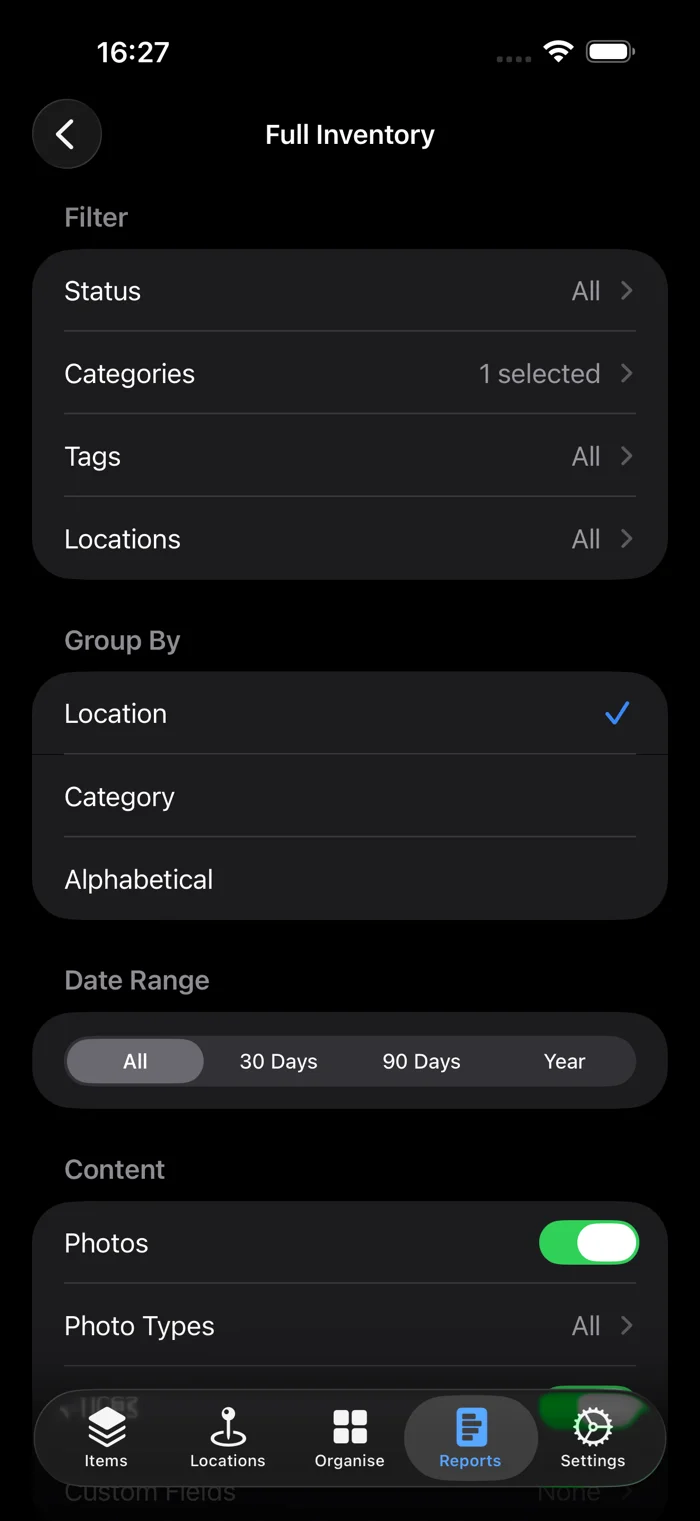
What the report includes
The full inventory PDF lists your items with the details you have recorded - name, serial number, model, manufacturer, and location. With the options turned on, it also shows each item's photos and purchase price. Because you can filter and group before generating, you can produce a report for a single room, a single category, or the whole home.
There is also a "Show Branding" option that adds a small "Generated by additem.to" footer. You can leave it on or turn it off - it makes no difference to a claim.
Choosing which photos go in
Photos in additem.to can be marked as a receipt, a condition record, a label, a manual, a box, or a document. When you turn Photos on for a report you can pick which of those types to include, and leave the rest out.
That is the difference between handing an assessor forty pictures and handing them the six receipts. For a claim, a report of nothing but receipts and condition photos is usually what you want. Leave the selection empty and you get every photo, as before.
Each photo prints its caption underneath. If a photo has no caption, the type is printed instead, so a receipt is labelled as a receipt without you typing anything. Ordinary photos with no caption get no label, so nothing is cluttered up. AI scanning writes captions for you when it files a photo, which is worth knowing before you caption forty of them by hand.
Export a single item as a PDF
For one high-value item - a camera, a bike, a piece of jewellery - you can export just that item:
1 Open the item.
2 Tap the ... menu in the top right.
3 Choose Export as PDF, then share or save it from the share sheet.
A per-item PDF includes that item's photos automatically, so it is a quick way to send proof for a single claim.
Tips for an insurance-ready PDF
- Photograph receipts and add them to the item. Mark the photo as a receipt and it can be printed on its own, without every other picture of the item. Bank or card statements work too if the receipt is long gone.
- Fill in purchase price and date. These are built-in fields, and they make the report far more useful to an assessor. See custom fields for adding things like warranty expiry.
- Take photos that identify the item - the front, and the serial number plate or any distinguishing marks. A photo from the day you bought it is worth more than one taken later.
- Keep a copy off-site. Save the PDF somewhere other than your home - email it to yourself or store it in the cloud - so it survives the event you are insuring against.
- Refresh after big purchases. Re-export when you add something valuable, rather than waiting for an annual audit.
Requirements
PDF export is available on iPhone and is free for all accounts - no paid subscription required. For what to record before you export, see the guide on home inventory for insurance.
additem.to is a free iPhone app for tracking your home contents. Add items, photos, and serial numbers, then export a PDF for your insurer in a couple of taps.
Download on the App Store