How to use NFC tags with iPhone for home inventory
Stick a tag to a shelf or box, link it once inside the app, and from then on scanning it jumps straight to that location. This guide covers how the linking works, the scan flow, choosing between location and item tags, and what to do when a tag won't read.
Using an Android phone? Most have NFC too, with the reader usually in the middle of the back. The Android guide has the details.
How additem.to uses NFC tags
Every NFC chip ships from the factory with a unique read-only ID, called a UID. additem.to reads that UID and stores a link inside the app, for example UID X is linked to "Workshop top shelf".
That UID link is the default, and it has real advantages.
- You can use any NFC tag from any pack without programming it first.
- Changing what a tag points to is a one-tap edit, not a re-write.
- A tag that another app has used before still works, because the UID is permanent.
There's also an optional extra called Tap to Open. Turn it on for a writable tag and the app writes a small link to the sticker. Tapping it with your iPhone then opens the linked item or location directly, even when the app is closed or the phone is on the lock screen. More on that below.
Read-only and pre-written tags both work
Because the app only reads the UID, it doesn't matter what state the tag's writable memory is in. All of these work fine.
- Tags that have been hardware-locked by another app or sold pre-locked.
- Tags with other data already written to them, such as a URL to someone else's website, an NDEF record for a different app, a vCard or an old WiFi password. additem.to ignores the writable area entirely.
- Tags from leftover or clearance packs where you've no idea what was put on them.
- Tags given to you secondhand from a friend's drawer.
The UID is always readable and permanent, and that's all the default linking uses. The only thing a locked or read-only tag can't do is Tap to Open, because that needs to write to the tag. Everything else works the same.
If you haven't bought any tags yet, see the NFC tag buying guide first. It covers which types to pick and which to avoid.
Linking a tag to a location (the most common case)
Most of your tags will do this job. They mark a physical spot that holds things.
- Stick the tag somewhere you'd naturally look when wondering what's inside. Good spots are inside a cupboard door, on the front of a storage box, under the shelf above or inside the front of a drawer.
- Open that location in the app. If it doesn't exist yet, create it first in the Locations tab.
- Tap Write Tag on the location screen.
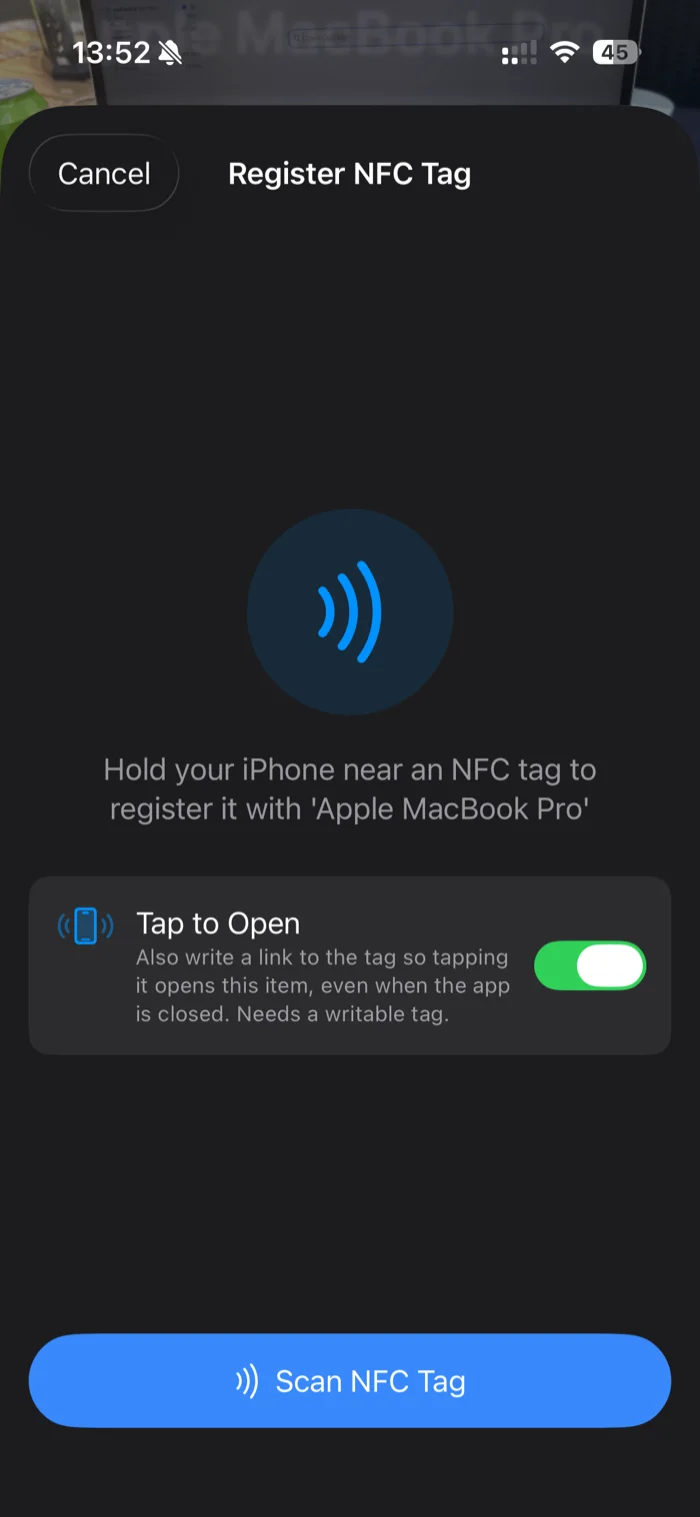
- Tap Scan NFC Tag, then hold the top edge of your iPhone within a couple of centimetres of the sticker. The NFC antenna sits behind the camera bump, not in the middle of the phone.
- The app reads the tag's UID and confirms the link. That's it.
From now on, opening the app and scanning that sticker jumps straight to this location.
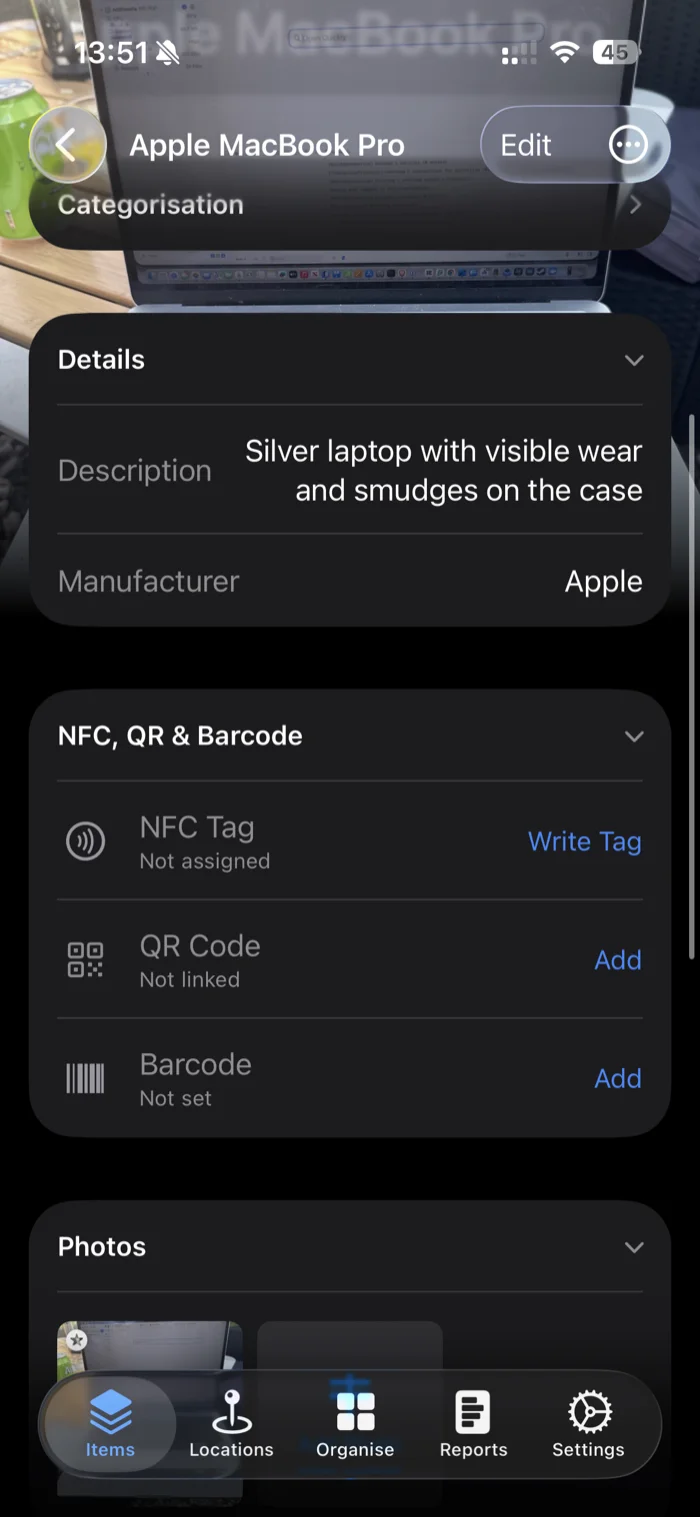
The registration sheet is the same whether you link a location or an item. Here is the flow, shown on an item.
Linking a tag to an item
Less common, but useful for things that move around. The flow is the same, but you open an item instead and tap Write Tag on the item screen.
Good candidates for item tags include these.
- Camera cases, lens cases, hard drives
- Test or measurement equipment that lives in a drawer most of the time but gets borrowed
- Loaned items, so a scan shows who has them
- Bulky tools where you want to check in and out with one scan
If you're not sure whether to use a location or an item tag, default to location. Locations are the framework of an inventory and item tags are the exceptions.
Using a linked tag: the scan flow
Once a tag is linked, jumping to it works like this.
- Open additem.to.
- Tap Quick Scan, then Quick NFC Scan.
- Hold the top edge of your phone over the sticker.
- The app reads the UID, looks it up and jumps straight to the linked location or item.
From there you can add or remove items, check what's there, check something in or out, or move on to scanning the next tag. Quick NFC Scan stays available for repeated scans, which is what makes a stocktake or "what's on this shelf" sweep quick.
Some parts of the app, such as stocktake, pick lists and check in and out, have their own scan button that does the same thing in context. It works the same way everywhere. The app reads the UID and does the lookup.
One tag on more than one item or location
Since 3.12.0 you can link the same tag to more than one item or location. Update the app on every device you use before you do, because older versions can lose a code that's on more than one thing.
If a tag is already in use, the app tells you where and asks before it links it again. Cancel and nothing changes. When you scan a tag that's on several things, the app asks which one to open. Locations show where they are and items show their serial number, so two with the same name are easy to tell apart. A scan looks in all your inventories and asks before it switches to another one.
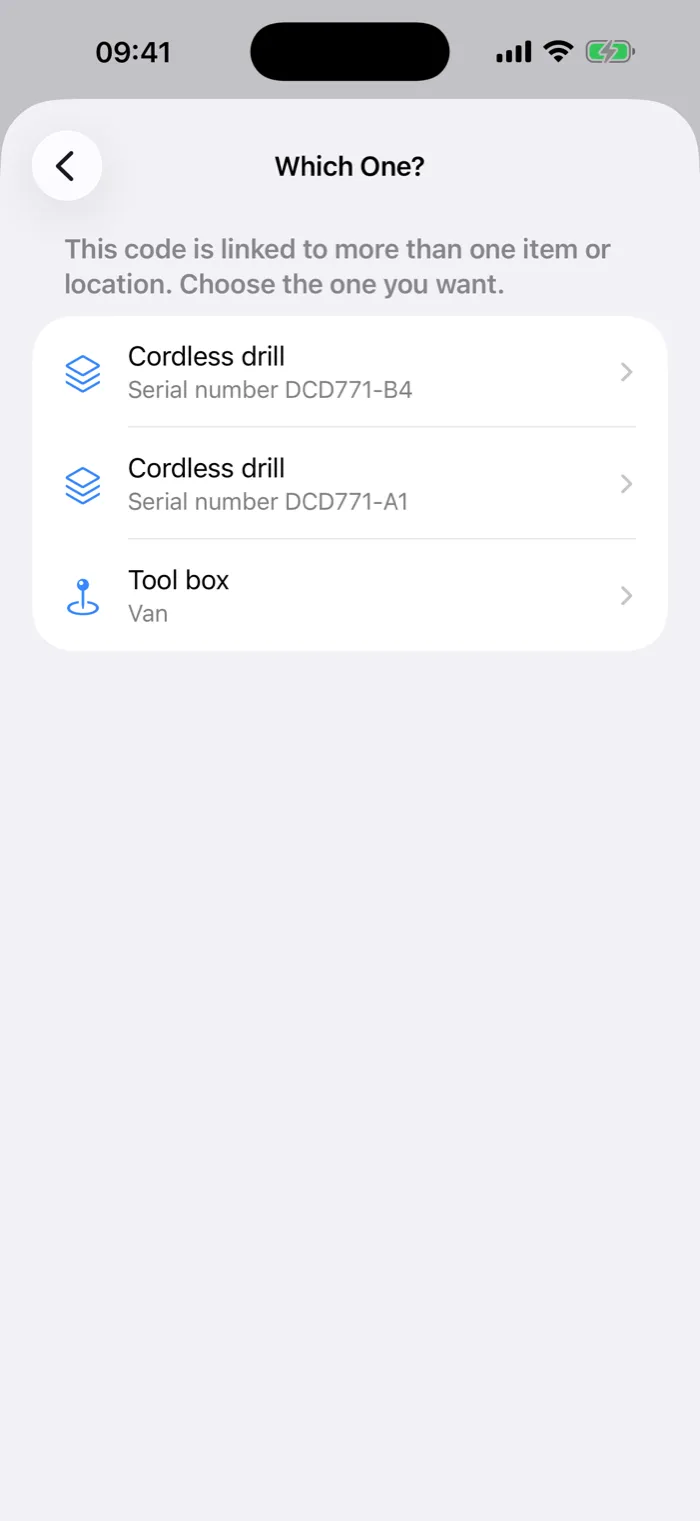
A tag holds only one Tap to Open link, so tapping it from outside the app opens whatever it was last written for.
Tap to Open: skip the app entirely
If your tags are writable (standard NTAG213, NTAG215 and NTAG216 stickers are), a tap can do everything. With Tap to Open turned on, the app writes a small link to the tag. From then on, this is what happens.
- Hold your iPhone over the sticker. The app can be closed and the phone locked.
- iOS reads the link and shows a notification.
- Tap it, and additem.to opens straight at the linked item or location.
You're offered Tap to Open when you first register a tag. One tap of the phone registers the tag and writes the link in a single step. You can also turn it on later from the tag's detail screen, or turn it off again. The app then erases the link from the sticker.
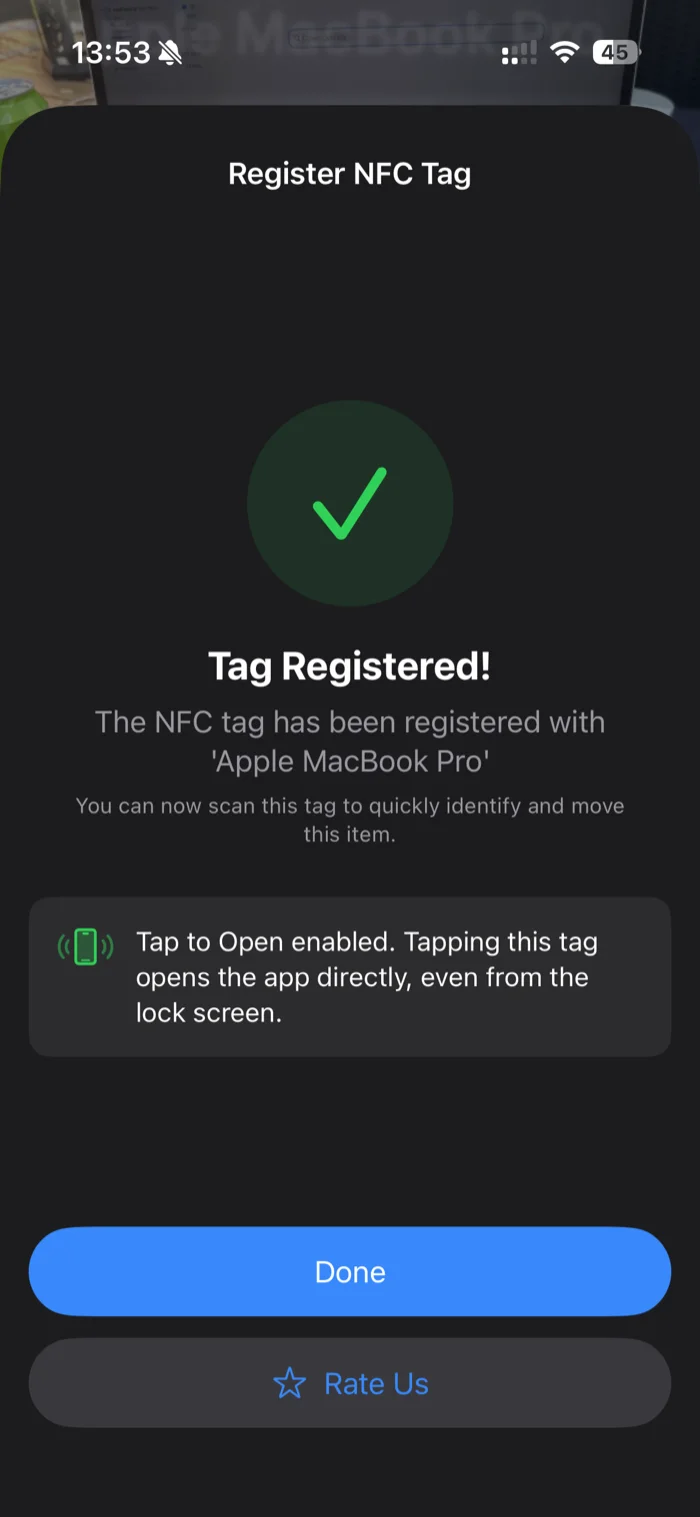
Things to know.
- It needs a writable tag. If a tag turns out to be read-only or too small, the app registers it normally and just tells you Tap to Open couldn't be enabled. Nothing is lost.
- In-app scanning still works exactly the same on a Tap to Open tag, because the UID link is untouched.
- Other NFC apps could overwrite the link on an unlocked tag. If that happens, link the tag again. The in-app UID link isn't affected.
- It works offline. The link routes straight into the app on your phone, with no internet involved.
Scan technique
Three things make a scan reliable.
- Use the top edge of the phone. The NFC antenna is behind the camera. Bringing the middle of the phone over the tag often misses.
- Get within a few centimetres. NFC range is short. You don't need to press hard, but you do need to be close.
- Hold for half a second. A flick-past can miss. A slight pause reads reliably.
When a tag won't read
If a scan does nothing, work through these in order.
- Phone position. Re-aim with the top edge of the phone over the tag. This fixes most failed reads.
- Metal surface. Regular NFC stickers don't work well on metal, such as filing cabinets, toolboxes and fridges. Move the tag to a non-metal surface (the underside of a metal shelf often works) or buy anti-metal tags, which have a ferrite shield.
- Tag type. If you bought a generic pack that turned out to be Mifare Classic, it won't work with iPhone. Check the product details. NTAG213, NTAG215 and NTAG216 are the safe choices.
- Damaged tag. The chip inside thin stickers can be cracked by sharp bends or by being scraped against a screw head when you press the sticker down. If only one tag in a batch fails, it's probably that tag.
- "Isn't linked" message. If the scan works but the app says This NFC tag isn't linked to any items or locations, that UID hasn't been linked yet, or it was removed. Open the location or item you want it to point to, tap Write Tag and scan again.
Where this gets useful
Once you've tagged a handful of locations, the workflow changes. Here are a few patterns to try.
- Workshop or garage. Tag each shelf and drawer of a tool cabinet. Scan to log what you just put in or out without typing.
- Kitchen pantry. Tag each shelf. Scan to see what's running low when you're writing a shopping list.
- Loft and storage. Tag each box from the outside. Scan to see what's inside without unstacking everything.
- Camera or hobby gear. Tag the case and link it to a kit. Scan to check everything's accounted for before you head out.
You don't have to tag everything. A few tags in the right spots cover the cases where you need speed. The rest of the inventory works fine without them.
QR codes and barcodes as alternatives
If a surface is metal, a tag is too small to find by touch, or you want to scan from across a room, a QR sticker works the same way. Each pre-printed sticker carries a unique code, and additem.to reads that code through the camera and looks it up the same way it looks up an NFC UID. QR codes generated by the app can do more. They open the item straight from the iPhone Camera, without opening the app first. The app can also print QR and barcode label sheets on Avery templates. See the label printing guide.
Barcodes work too. Link a product's own barcode to an item, or reuse labels from a previous system. You can mix all three. Use NFC for instant taps, QR for boxes you scan from a distance, and barcodes for products and existing labels. See the tag buying guide for cost and durability differences.
additem.to is a free iPhone app for home and small-business inventory. NFC and QR tag support is included on the free tier, no account needed.
Download on the App Store Get it on Google Play