How to export your inventory to CSV in additem.to
Export your items to a spreadsheet for insurance, data analysis or bulk updates. Every export includes each item's unique ID. That means you can edit the CSV in Excel or Google Sheets and reimport it to update your inventory in bulk, with no need to edit items one by one.
Why export to CSV
A CSV export helps in a few situations. A spreadsheet is often easier to share with a broker or assessor than a mobile app. Opening your inventory in Excel or Google Sheets lets you sort, filter and add up totals your own way, such as total replacement value, items by room or items bought in a given year. And exporting, editing and reimporting lets you update dozens of items at once instead of tapping through them one by one.
You can export on iPhone and in the web app at app.additem.to. On iPhone it's free on every plan. The web app is part of Pro Cloud, and exporting from it costs nothing extra.
How to export
On iPhone
1 Open additem.to and go to the Items list for your inventory.
2 Tap the ... menu (top left).
3 Choose Export Items.
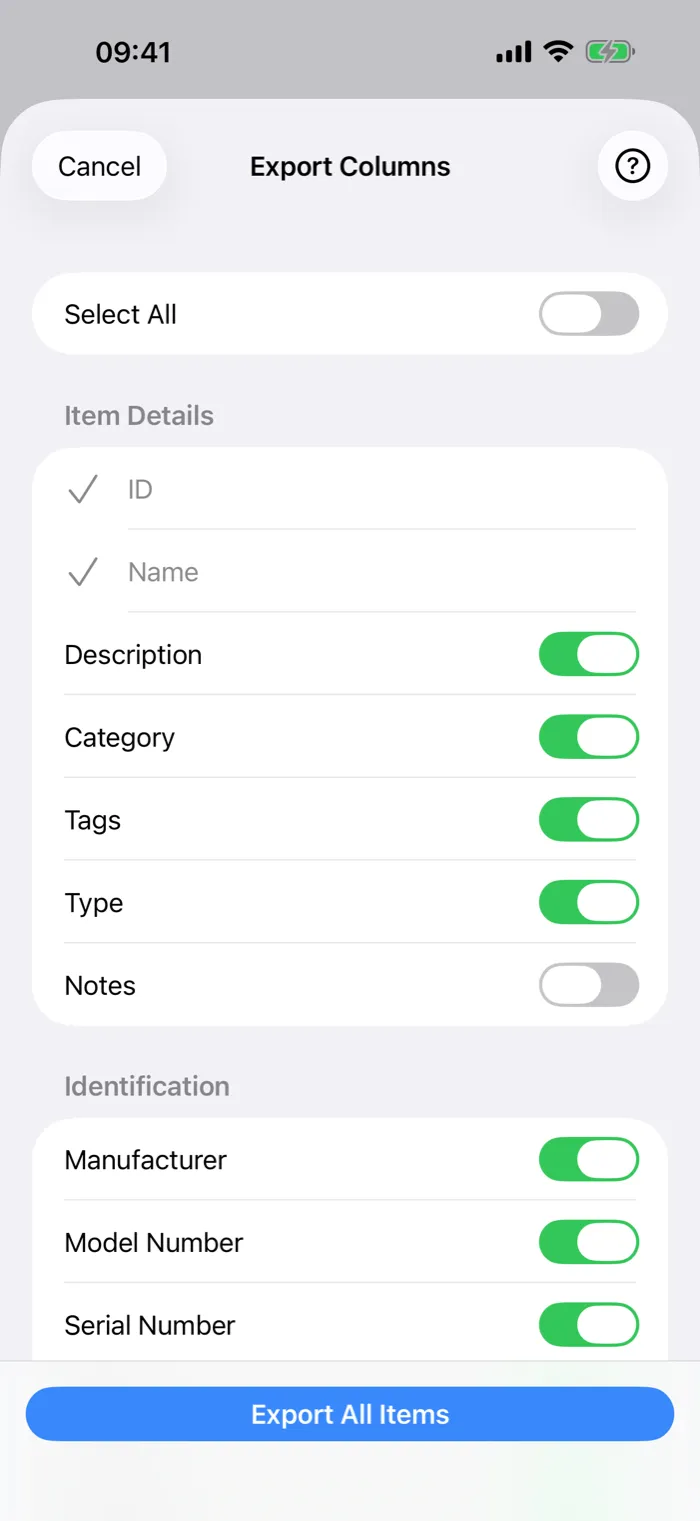
4 Tick or untick the columns you want, then tap Export All Items.
5 A share sheet opens. Save the file to Files, email it or open it in another app.
In the web app
1 Open the web app and go to the Items page for your inventory.
2 Apply any filters you want, such as location, tag, category or a search term. The export includes only the items currently shown. To export everything, make sure no filters are active.
3 Open the ••• menu at the top of the page and choose Export.
4 In the dialog, tick or untick the columns you want. All columns are ticked by default. Use "Select all" and "Deselect all" to change everything at once.
5 Click Export CSV. The file downloads straight away as items-YYYY-MM-DD.csv.
What's in the CSV
The first two columns, ID and Name, are always there and can't be removed. The rest are optional. Custom fields come last, named after the field.
| Column | Notes |
|---|---|
| ID Always included | The item's unique identifier. Used to match rows when reimporting. |
| Name Always included | The item's name. |
| Description | The item's description. |
| Category | The category label assigned to the item. |
| Tags | The tag names, with a semicolon between each. |
| Manufacturer | |
| Model Number | |
| Serial Number | |
| Barcode | |
| QR Code | The QR code linked to this item, if any. |
| Location | The name of the item's current location. |
| Lent To | Name of the person the item is currently lent to, if on loan. |
| Quantity | The quantity. Mostly useful for quantity items. |
| Unit | The unit for the quantity, such as "packs" or "kg". |
| Type | "Individual" for individual items and "Bulk" for quantity items. |
| Purchase Date | ISO date format (YYYY-MM-DD). |
| Purchase Price | Numeric value, no currency symbol. |
| Notes | Any notes added to the item. |
| Low Stock Threshold | For quantity items, the quantity at which a low stock warning appears. |
| Created | The date the item was first added (YYYY-MM-DD). |
| Updated | The date of the last edit (YYYY-MM-DD). |
| Status | "sold", "missing", "archived", or blank for no status. You can edit it and reimport it, which is how you mark items sold in bulk. |
| Your custom fields | One column per custom field, named after the field. Added after all built-in columns. |
The ID column and bulk editing
Every item in additem.to has a permanent unique ID, a UUID that never changes whatever you edit on the item. The export always puts this ID in the first column.
When you reimport a CSV, additem.to checks each row for an ID. If the ID matches an existing item in your inventory, that item is updated with the values from the row. If no matching item is found, a new item is created. So you can make bulk changes without creating duplicates. Here is how.
- Export your inventory to CSV.
- Open the file in Excel, Numbers, or Google Sheets.
- Change the values you want, such as purchase prices, missing serial numbers, notes or categories.
- Save the file and reimport it with Import in the ••• menu on the Items page. On iPhone, use Import from CSV in the same menu as Export Items.
The key rule is not to change or delete the ID column. The IDs are how the import knows which item each row belongs to. If you remove the ID from a row, it's treated as a new item instead of an update.
Exporting a filtered subset
You don't have to export your whole inventory. In the web app, the export follows whatever filters are active on the Items page. Filter by location to export everything in one room. Filter by tag to export one kind of item. Use the search bar to narrow it to a keyword. When the list shows what you want, export.
To export everything, clear the filters first. On iPhone, Export Items exports every item in the inventory. To export only some, tap Select, choose the items and tap Export.
Custom fields in the export
If your inventory has custom fields, they appear as extra columns at the end of the CSV, one per field and named after it. In the column picker you can include all of them, some or none. They're included by default when you open the export dialog.
Custom field values export in a plain form. Date fields export as YYYY-MM-DD. Multi-select fields export as a comma-separated list. Number, currency, percentage and rating fields export as a number with two decimal places. Measurement fields (weight and dimension) export as the number followed by its unit, such as 2.5 kg.
Requirements
You can export on iPhone and in the web app at app.additem.to. On iPhone it's free on every plan, with no subscription needed. The web app is part of Pro Cloud.
Try additem.to free on iPhone, or sign in to the web app to export your inventory.
Download on the App Store Open the web app