How to run a stocktake
An inventory is only useful while it's right. Things get lent out, moved to the shed, thrown away or sold, and the app doesn't know unless you tell it. A stocktake is how you check. You count what's really there, and the app shows you what it can't find. This guide walks through one from start to finish.
What you need
- additem.to on your phone. Stocktake is on every plan, including the free one, and it works with no signal.
- Items in the app, ideally with a location. A stocktake checks the items the app thinks are in a place.
- Labels if you have them. QR codes, barcodes and NFC tags make counting much faster, but you can tick everything by hand.
Start small. One cupboard or one shelf is a good first stocktake. You'll see how it works in a few minutes, and a small count is easy to finish in one go.
Step 1: Pick what to count
On the Items list, open the menu at the top and tap Stocktake. In the web app, choose Stocktakes in the menu on the left, then New Stocktake.
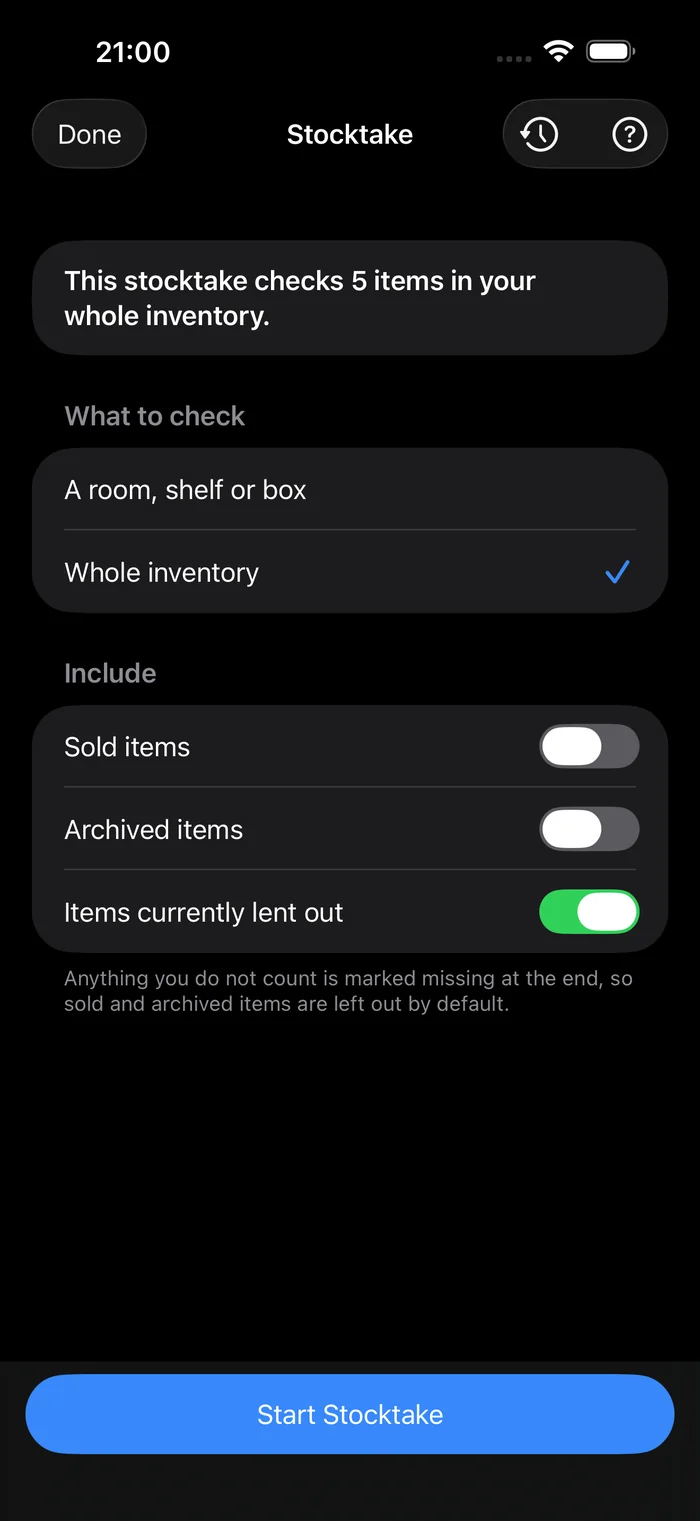
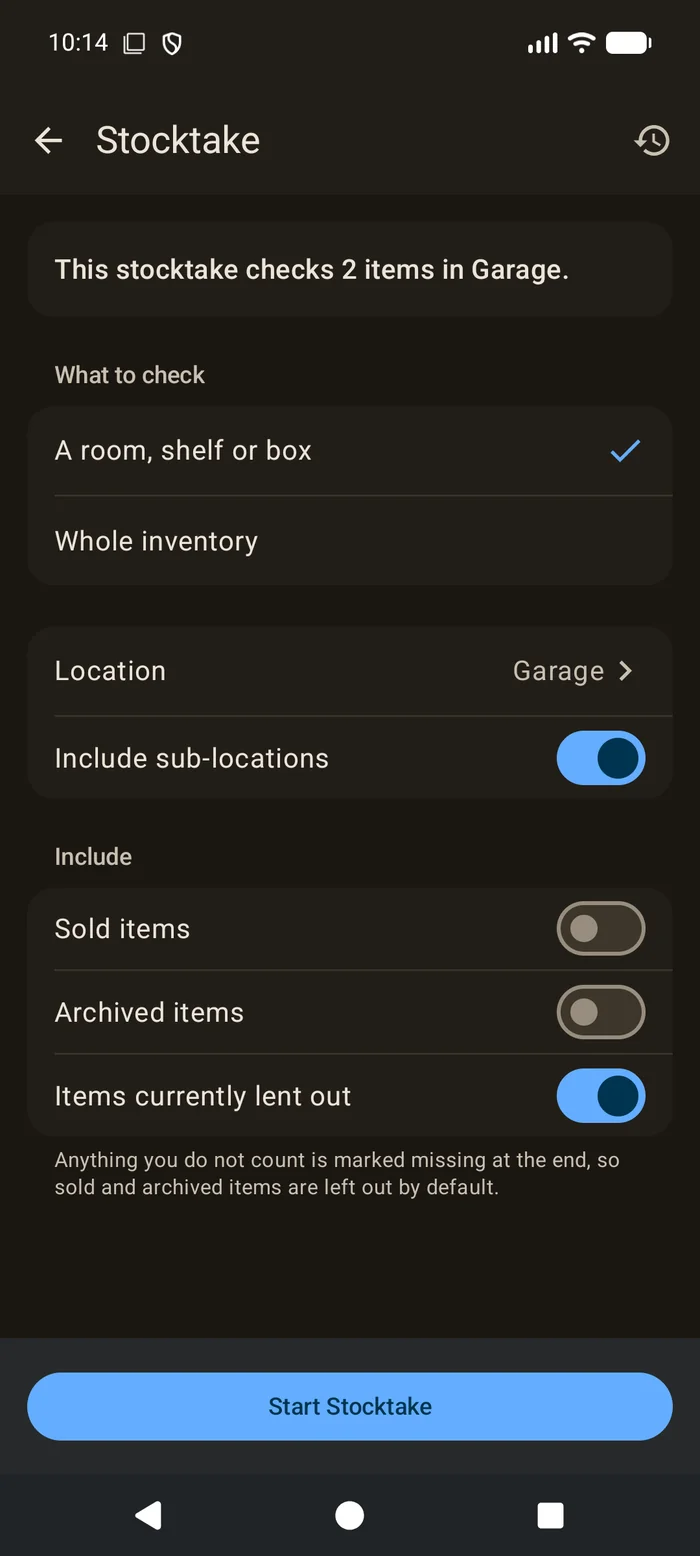
Choose what the stocktake covers.
- A room, shelf or box. Pick a location. Anything stored inside it, like a box on a shelf in that room, is included too, unless you turn off Include sub-locations.
- Your whole inventory. Everything in the inventory, wherever it is. Good for a yearly check, but it's a big job, so set aside the time.
On iPhone and iPad, if you start from a filtered Items list, you can also count just the items that match the filter, such as one category.
Sold and archived items are left out, because you don't expect to find them. Items you've lent out are counted. Turn any of these on or off below the location.
Before you start, the screen tells you exactly what you've chosen, such as This stocktake checks 42 items in Garage. If the number looks wrong, change the choice before you tap Start Stocktake.
Step 2: Count each item
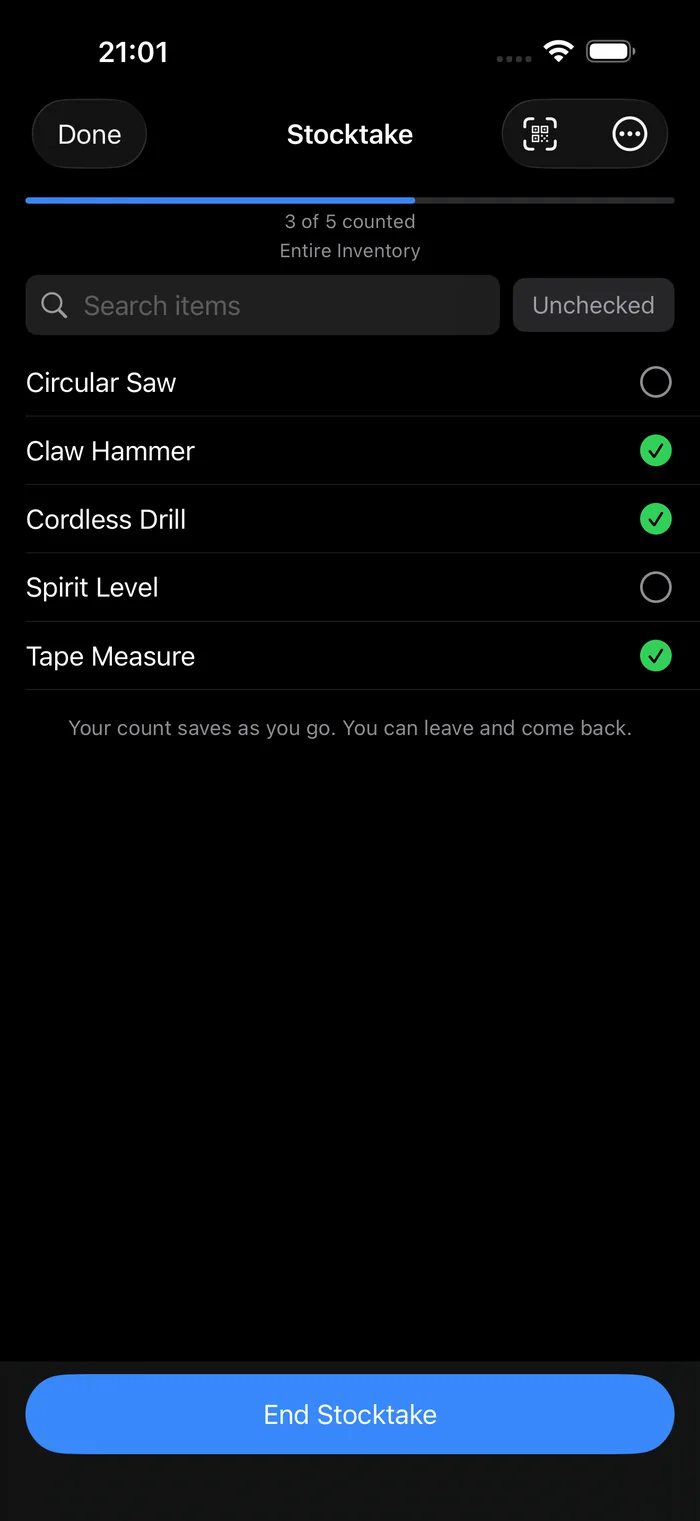
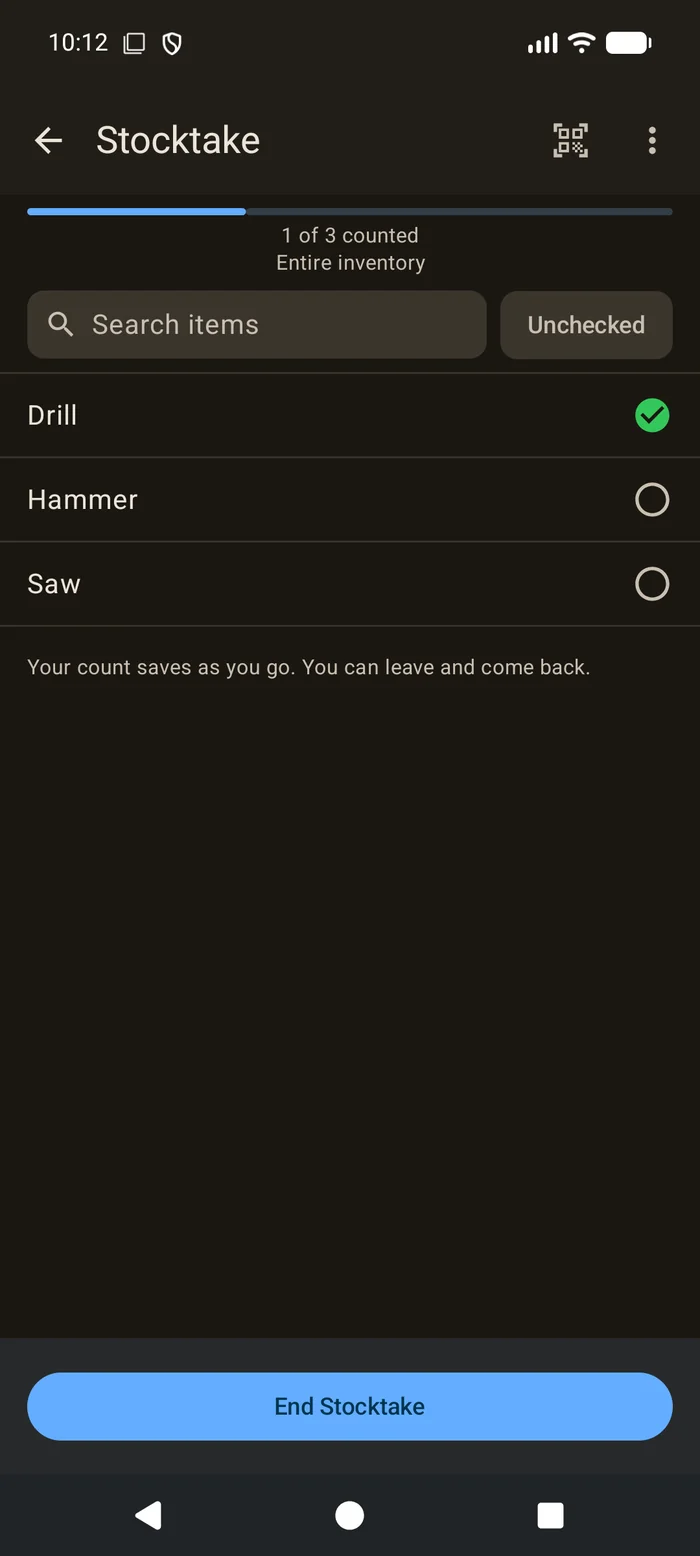
Walk through the space with the list. For each item you find, do one of these.
- Scan its label. Tap the scan button and point the camera at the QR code or barcode. The scanner stays open, so you can go from item to item. Each scan says what it counted and how many you've done.
- Tap its NFC tag. On a phone with NFC, hold it to the tag. It reads one tag after another until you stop.
- Tick it in the list. Tap the item's row, or Found on its row in the web app. Use the search box to find it in a long list.
Ticked rows stay where they are, so a mistap is easy to spot and tap again.
Items you count by number, like screws or batteries, ask how many you found. The box starts empty, with the number the app expects shown as a hint, so you count rather than confirm. Tap a counted one again to change the number.
In the web app, the box at the top of the list takes a code. Type it and press Enter, or use a USB barcode scanner, which types the code for you. There's also a camera button.
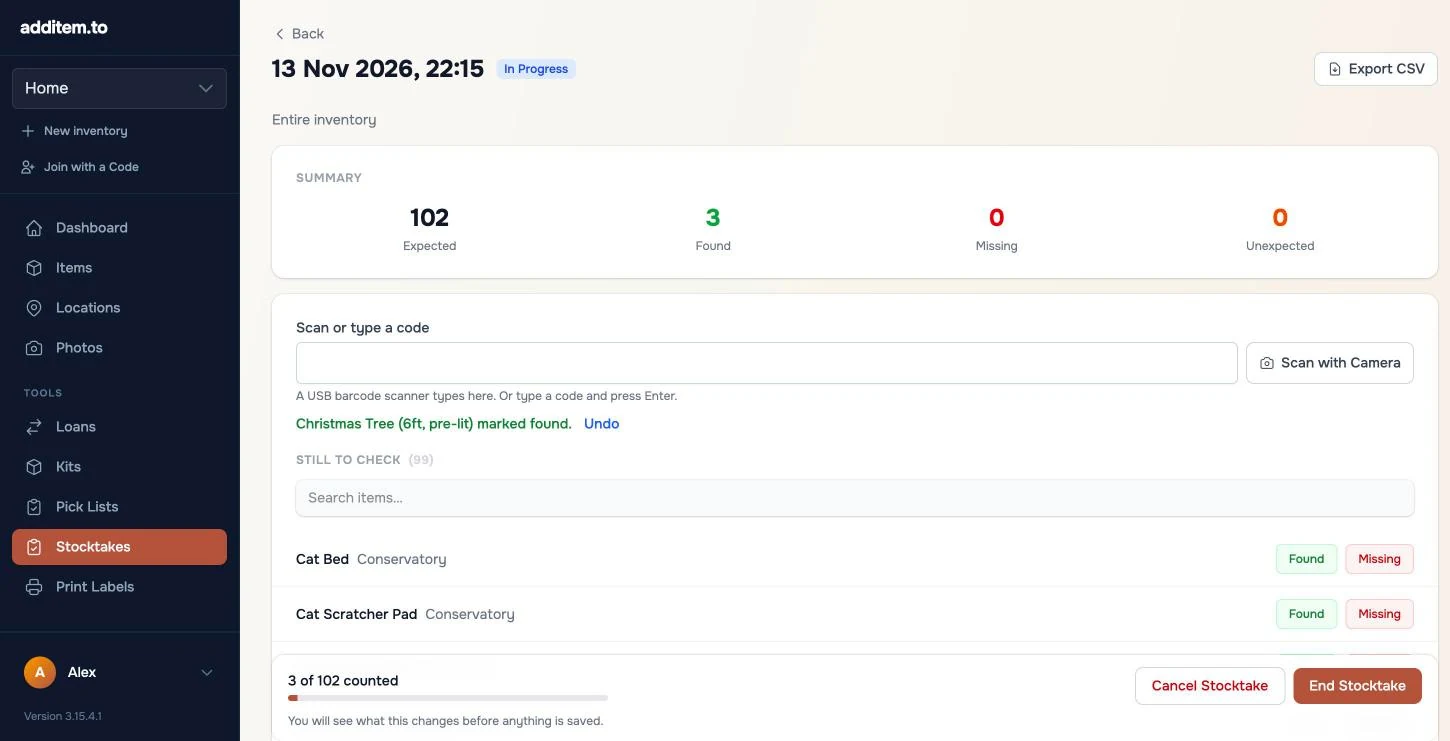
When you find something that isn't on the list
Scan an item that isn't part of this stocktake and it's added as unexpected. It isn't marked missing anywhere, because you're holding it.
If you're counting a location, tap the unexpected item and choose Move to the location you're counting. It moves there, with a line in its history. That's the quickest way to fix things that ended up in the wrong place.
Step 3: Leave and come back if you need to
Your count saves as you go. You can close the app, put the phone down for a week, and pick up where you left off.
While a stocktake is open, the Items list shows a banner, such as Stocktake in progress. 12 of 42 counted. Tap Continue to get back to it. If a stocktake has sat untouched for a month, the banner says so.
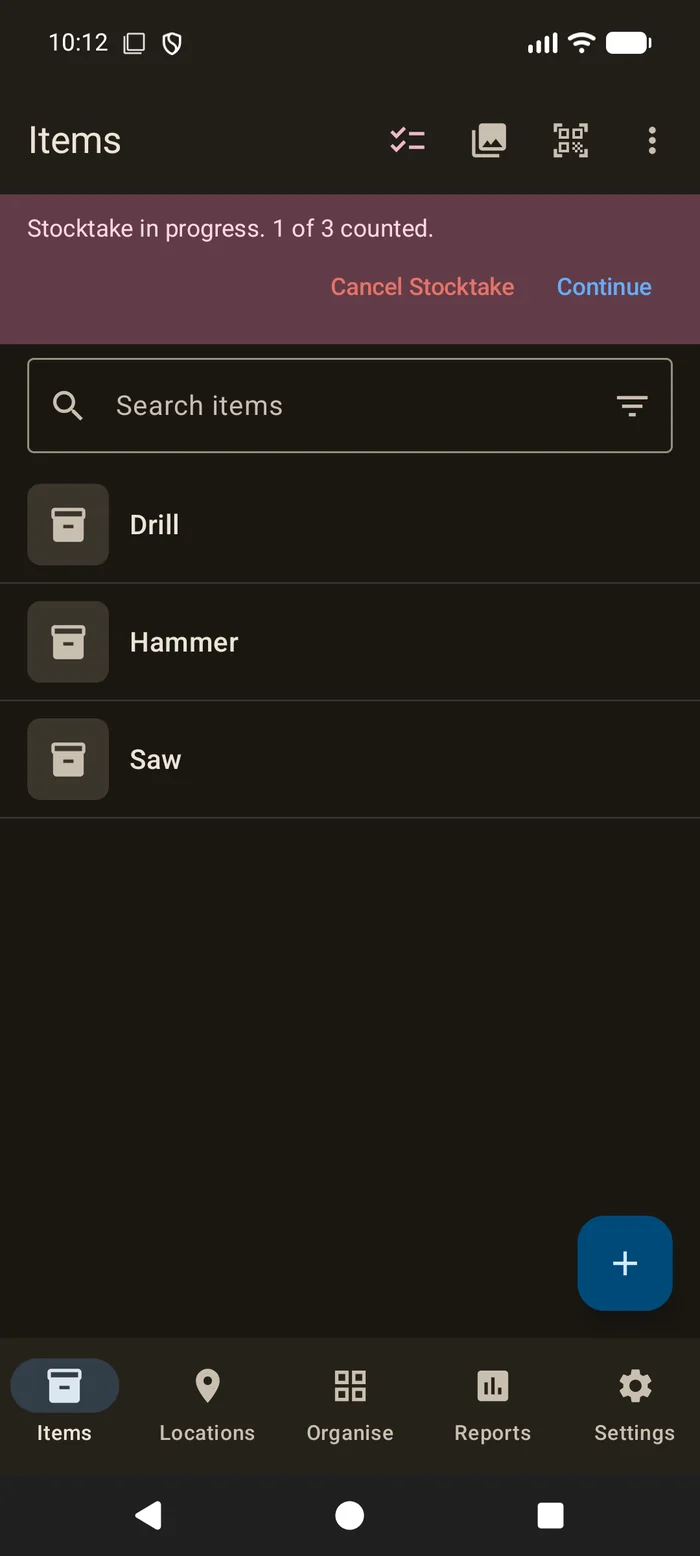
With Pro Cloud, the count syncs. You can start a stocktake on your phone and finish it on another phone or in the web app.
Step 4: Review, then end it
When you've counted everything you can find, tap End Stocktake. Nothing changes yet. First you see what ending it is about to do.
- Items you didn't count are listed under Mark these missing? Each one says Missing. If one is actually here and you just didn't scan it, tap it so it says Here instead. An item that was already marked missing before this stocktake says Already Missing. Tap it if it's here, and it's counted and its missing mark comes off. To leave every item as it is, tap Don't Mark Any Missing.
- Items that were already marked missing and you've now found are listed too, so their missing mark comes off.
- Counted numbers that differ from what the app had are listed, so you can update them.
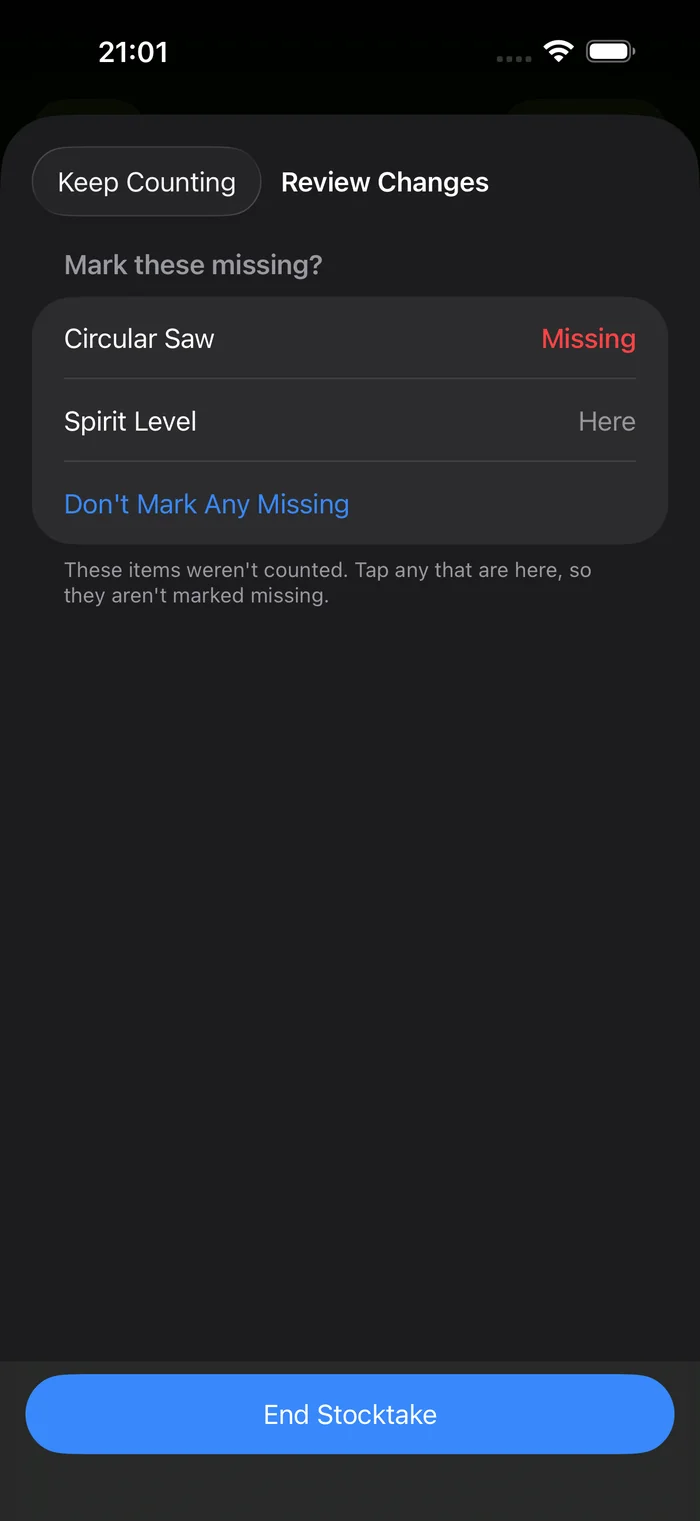
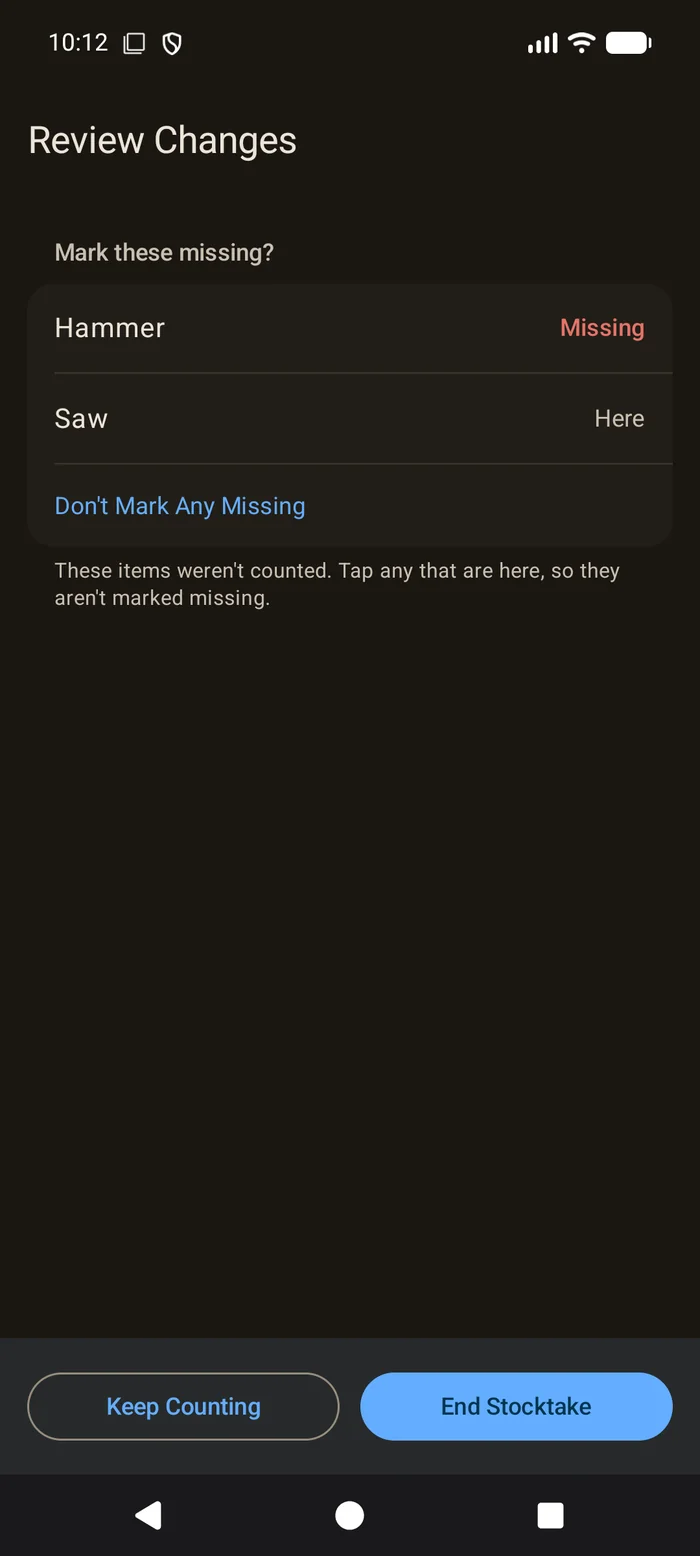
Tap End Stocktake again to make those changes. Tap Keep Counting to go back to the list. If you've changed any rows, it asks before throwing those changes away.
If you've hardly counted anything, the review warns you before marking lots of items missing. That's usually a stocktake started by mistake, and Cancel Stocktake Instead is right there.
Cancelling instead
To stop a stocktake without changing anything, use Cancel Stocktake, from the menu on the count or from the banner on the Items list. It asks first. No item is marked missing, and the stocktake stays in your history as cancelled.
Cancel is the right choice when you started the wrong one, or when the count is too old to trust.
Step 5: Read the report, and fix mistakes
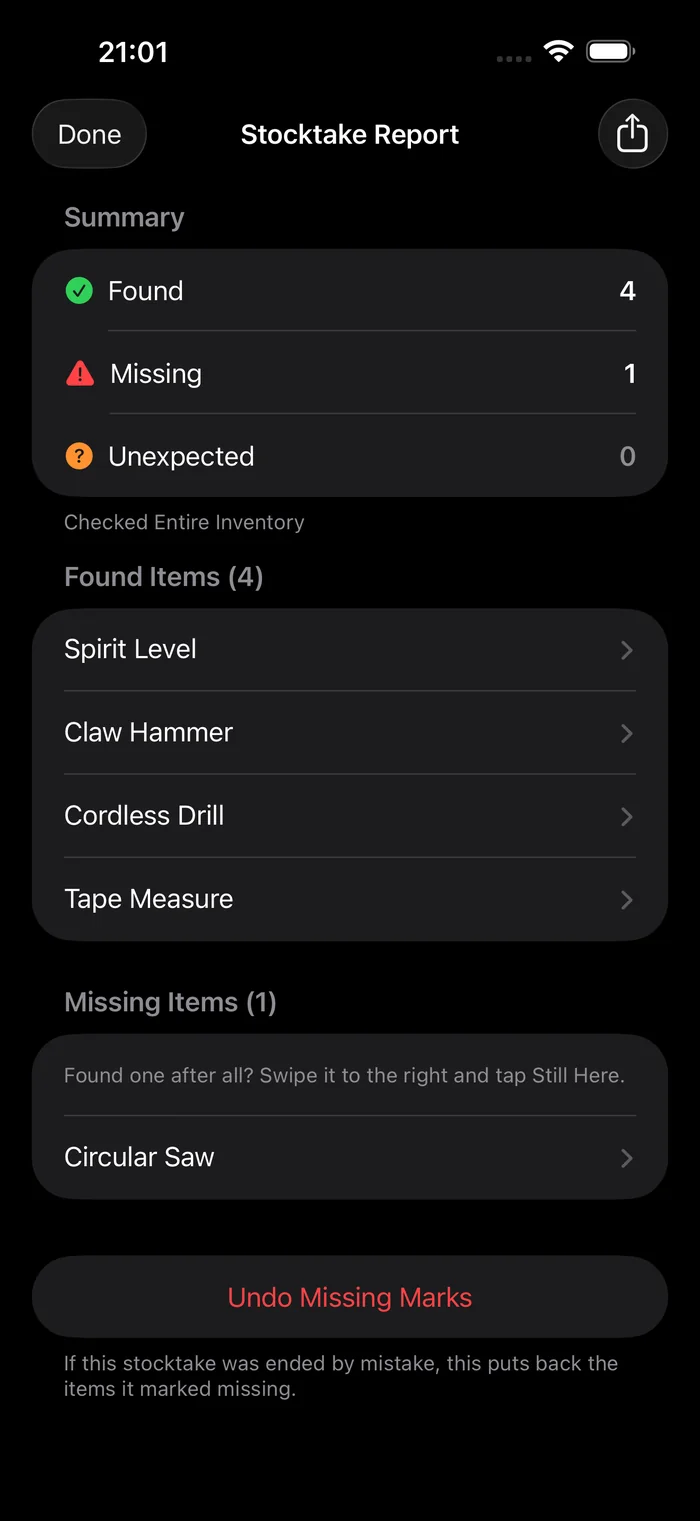
The report shows what was found, what's missing and what was unexpected. Open any item from it.
- Found one after all? Use Still Here on that item in the Missing list. On iPhone, swipe the row to the right. Its missing mark comes off and its history says why.
- Ended it by mistake? Tap Undo Missing Marks. Every item the stocktake marked missing goes back to how it was before, and each gets a line in its history saying so. Any item marked missing again since, by hand or by a later stocktake, is left alone.
- Need a record? On iPhone and in the web app, export the report as a CSV.
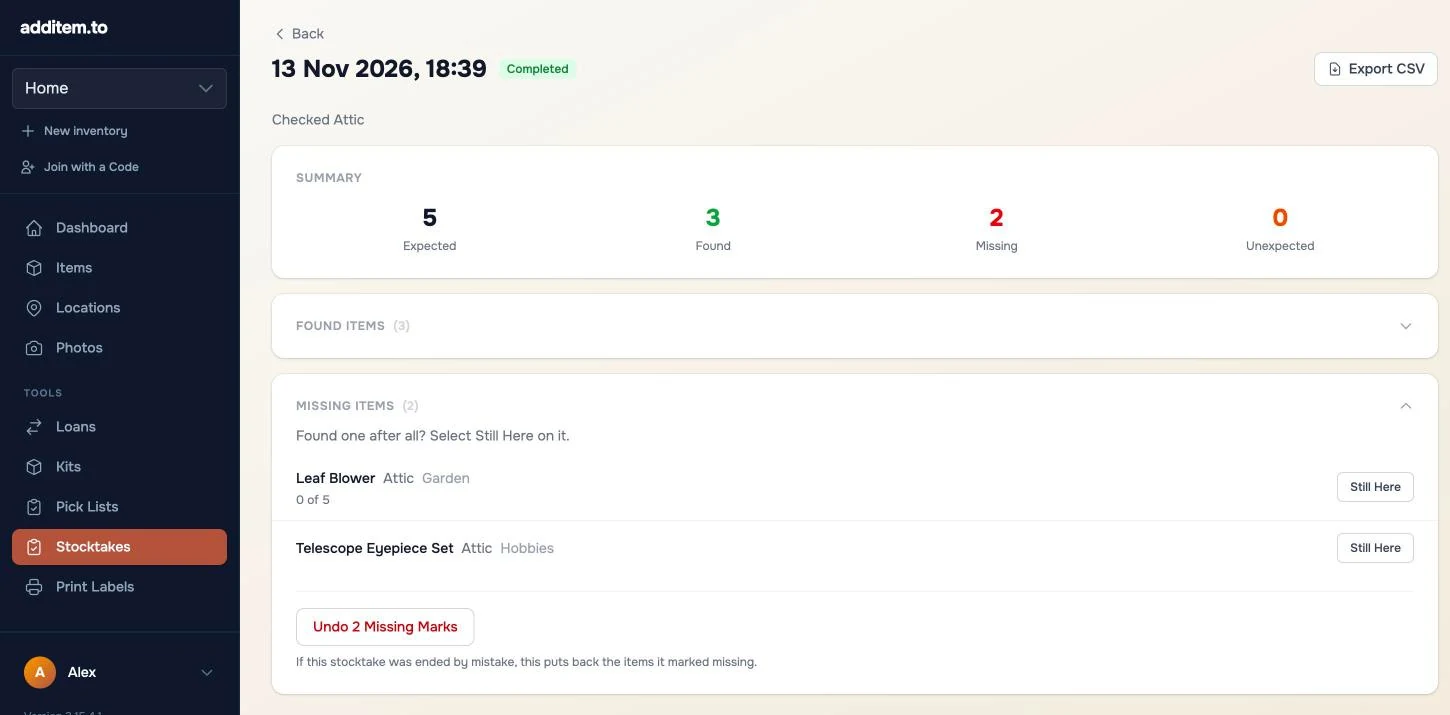
A missing item says so on its own page, so you'll notice next time you open it. Your past stocktakes are under History on the stocktake screen, or on the Stocktakes page in the web app.
A few tips that help
- Count one place at a time. A shelf you can finish today beats a whole house you abandon halfway.
- Label the things you count often. A QR label turns each item into a single scan. The label printing guide shows how to make a sheet of them.
- Make it a habit. A quick count of the garage or the tool van every few months catches things that went walkabout while you still remember who borrowed them.
- Use it when you move things. After a house move or a tidy up, a stocktake of each room shows what ended up somewhere new, and Move to fixes it as you go.
- Landlords, a stocktake of each room at check out shows what's still there against the check in list. The landlord guide covers the rest.
additem.to is a free app for iPhone and Android for keeping track of what you own. Stocktake is on every plan, with no account and no item limit.
Download on the App Store Get it on Google Play