How to share an inventory
Share an inventory with your family, a housemate or your team. You send them a link, choose what they can do, and see who has access. The people you invite don't need Pro Cloud.
Sharing gives another person access to one of your inventories. They see the same items on their own phone and in a web browser, and if you let them, they can change things too. Everyone sees each other's changes once their app has synced.
You share one inventory at a time. Someone you share your garage with sees the garage, and nothing else of yours.
What you need
- Pro Cloud on your account. Sharing is part of Pro Cloud, because the inventory has to sync to reach anyone else.
- An inventory that syncs. Cloud Sync must be on for the inventory you want to share. It is by default.
The people you invite need the app, or a web browser, and a free account. They don't need Pro Cloud. You can share with up to five people, counted across all your inventories.
View only or Editor
When you invite someone, you choose what they can do.
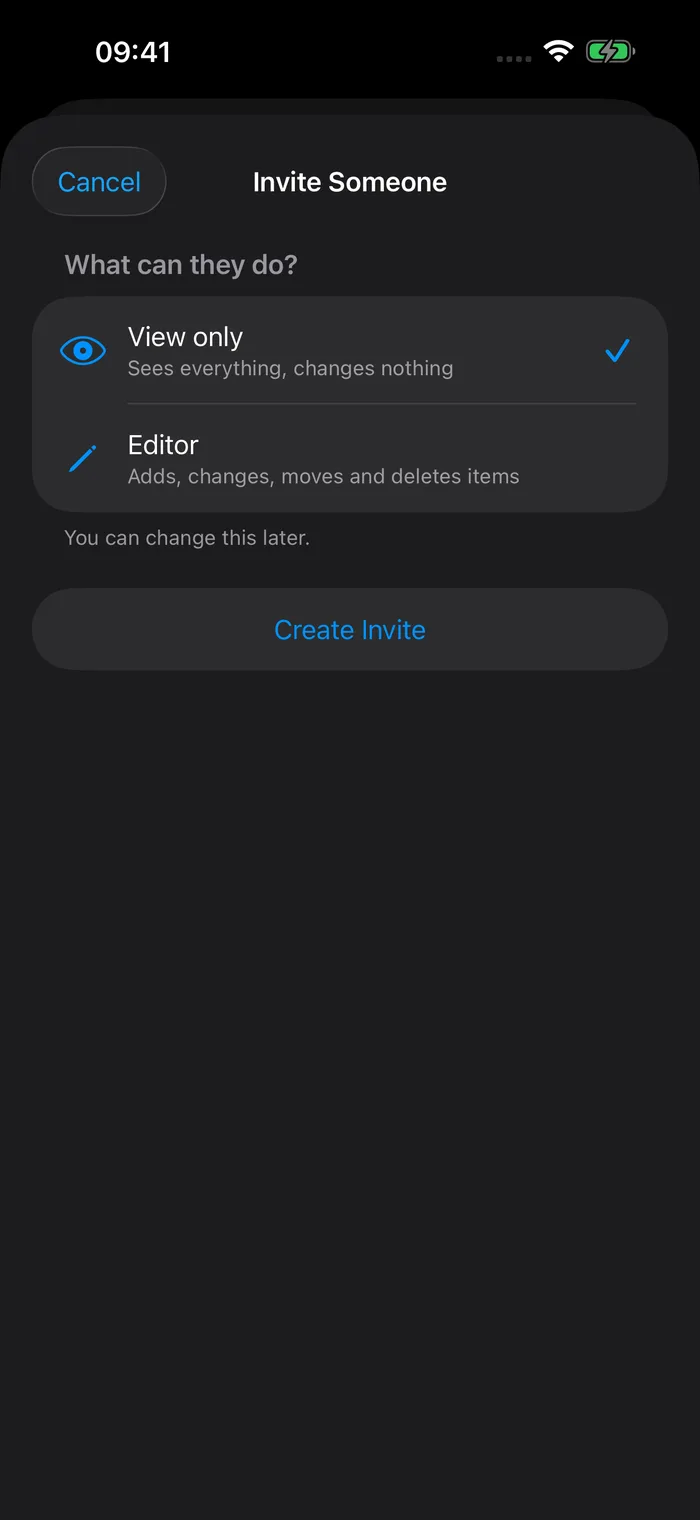
- View only sees everything in the inventory and changes nothing. That includes not checking items in or out, not moving them, and not running stocktakes or pick lists.
- Editor can add, change, move and delete items, check things in and out, and run stocktakes and pick lists.
Only you, the owner, can invite people, change what they can do, or remove them. You can change someone's role at any time.
Invite someone
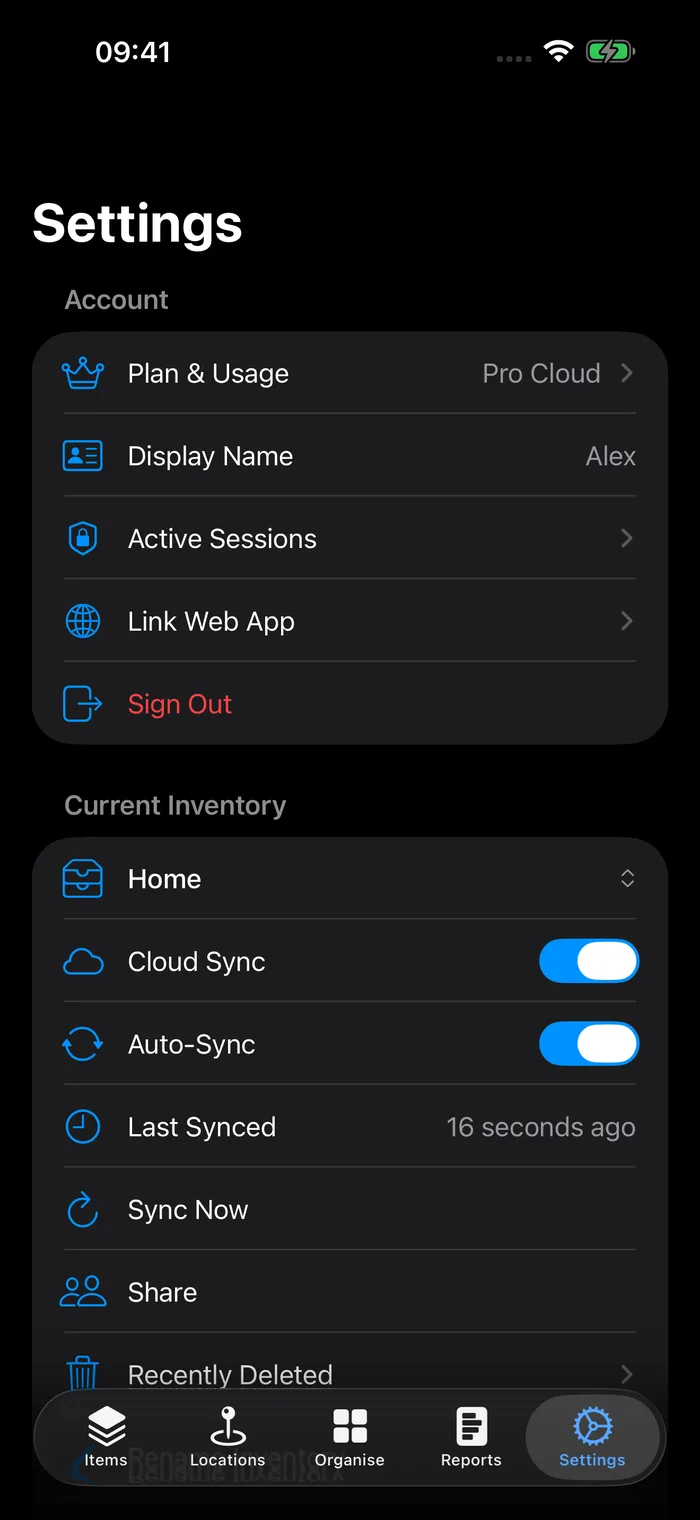
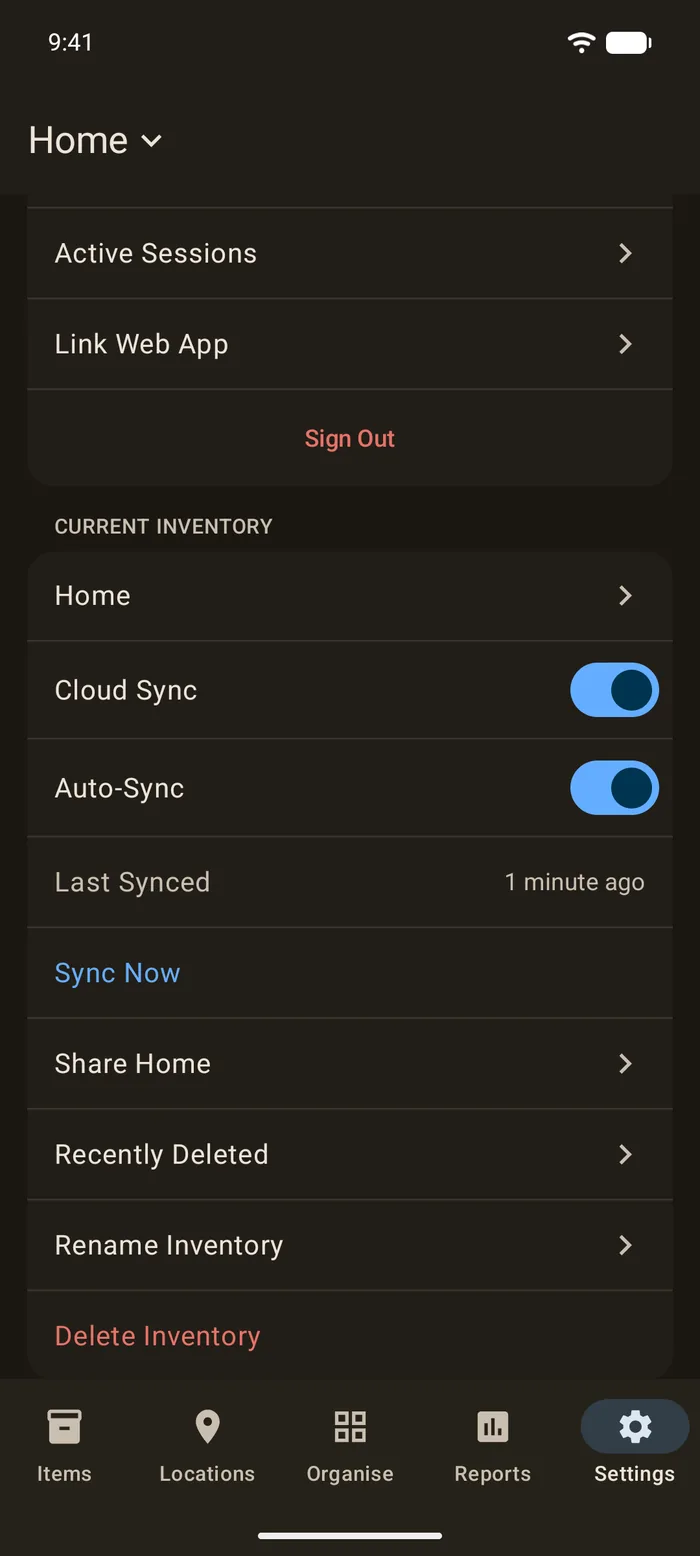
- Switch to the inventory you want to share.
- Open Settings, and under Current Inventory tap Share.
- Tap Invite Someone and choose View only or Editor.
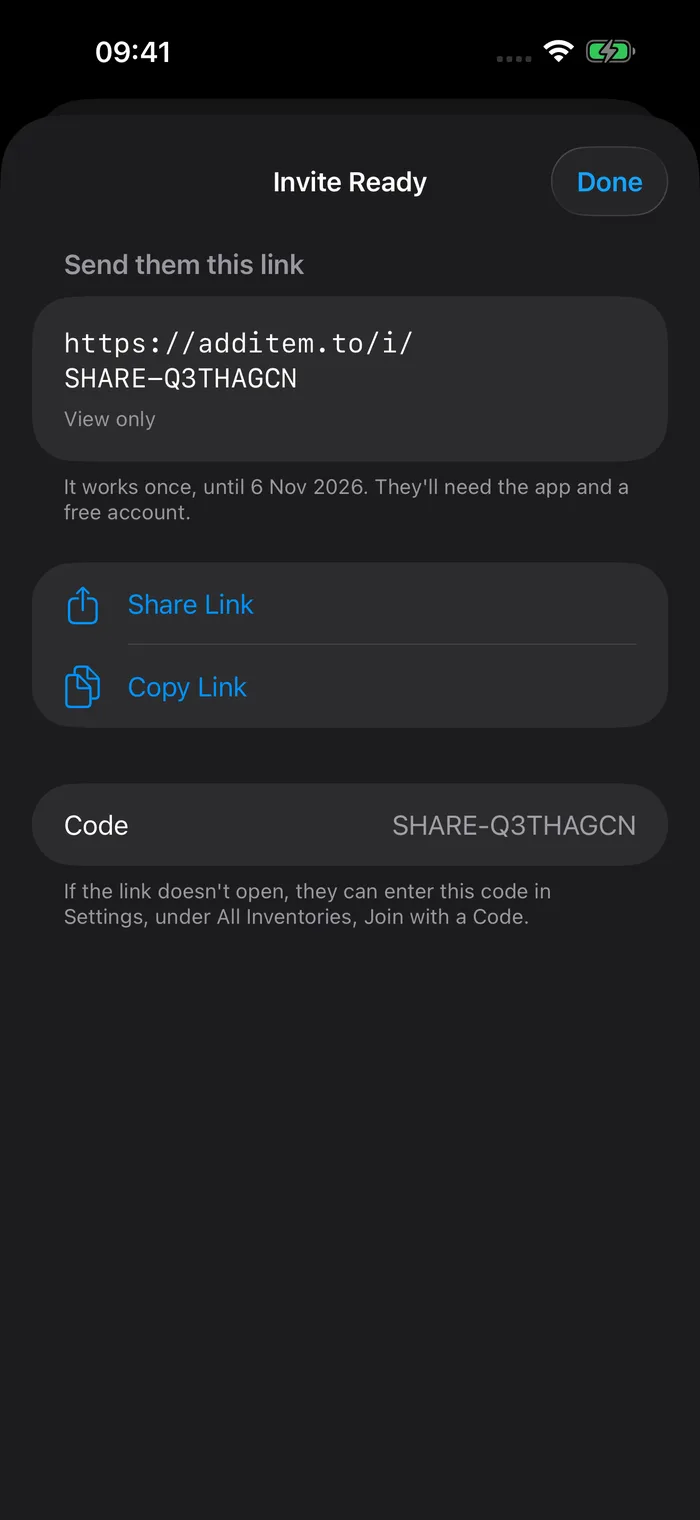
- Tap Create Invite. You get a link.
- Tap Share Link to send it by message or email, or Copy Link to paste it yourself.
On the web, open Organise > Share for the inventory you're in, then Invite Someone. The steps are the same.
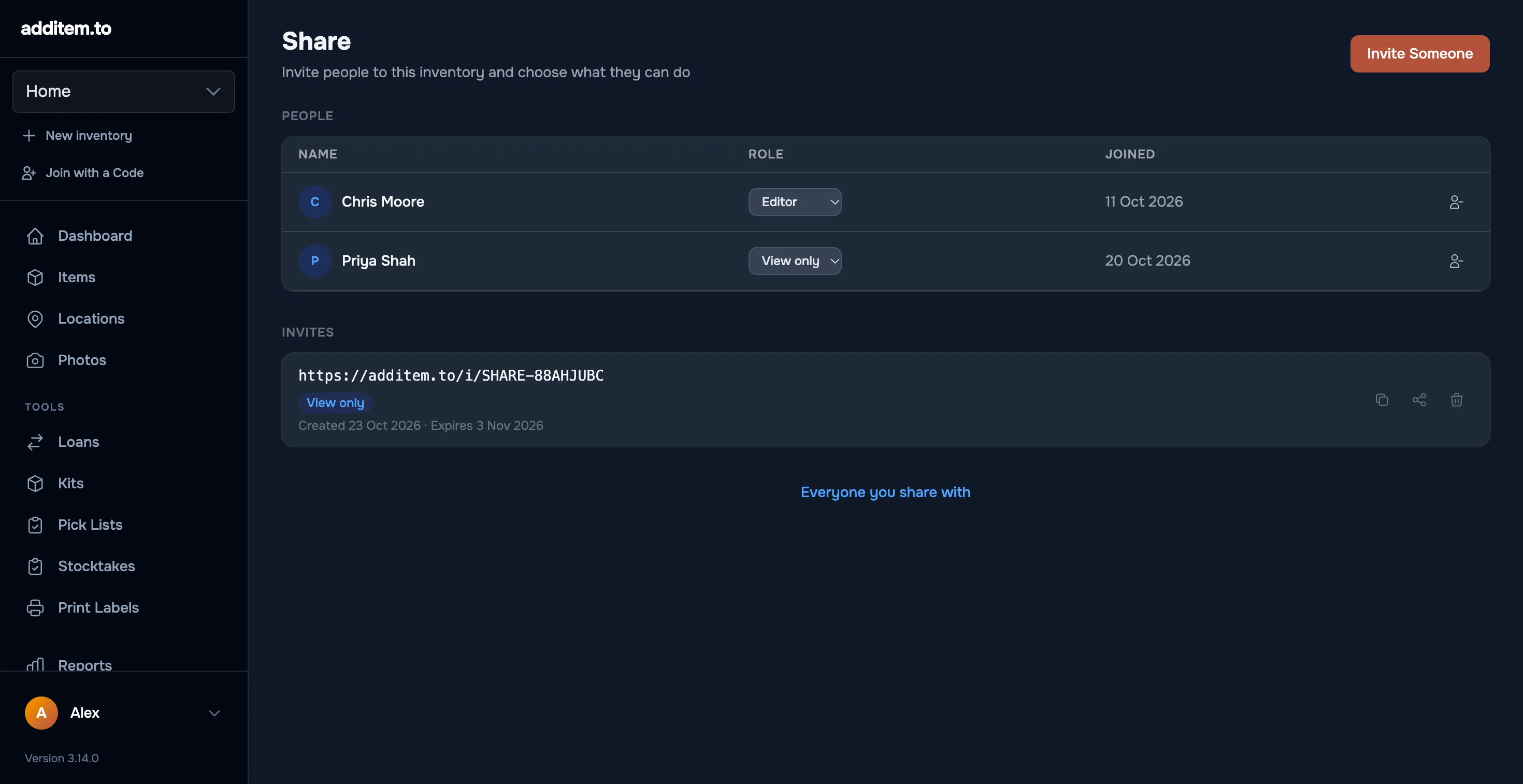
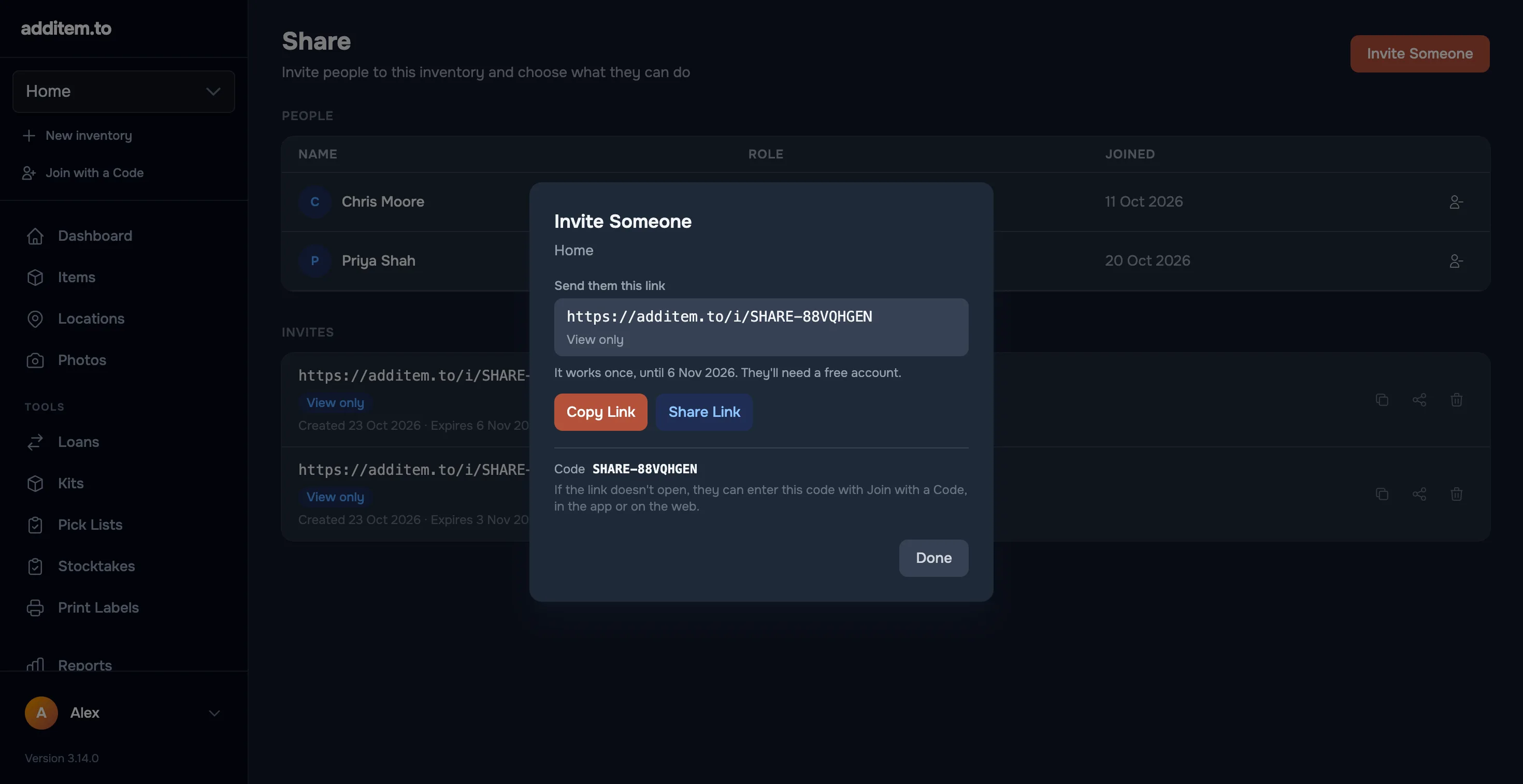
Each link works once, for 14 days. Waiting invites are listed under Invites on the same screen, with the date they run out. Swipe left on one to cancel it.
Someone who already has access to another of your inventories is listed under People You Already Share With. Tap Add to give them this one too, without sending an invite.
What the person you invite sees
When they open the link on a phone with additem.to installed, the app shows who invited them, to which inventory, and what they'll be able to do. They tap Join, and the inventory opens and downloads. If they're not signed in yet, the app asks them to sign in or create a free account first, then shows the invite again.
If they don't have the app, the link opens a page on our website with the code on it, links to the App Store and Google Play, and a way to join in a web browser instead. If the link doesn't open the app for any reason, they can type the code in Settings > All Inventories > Join with a Code.
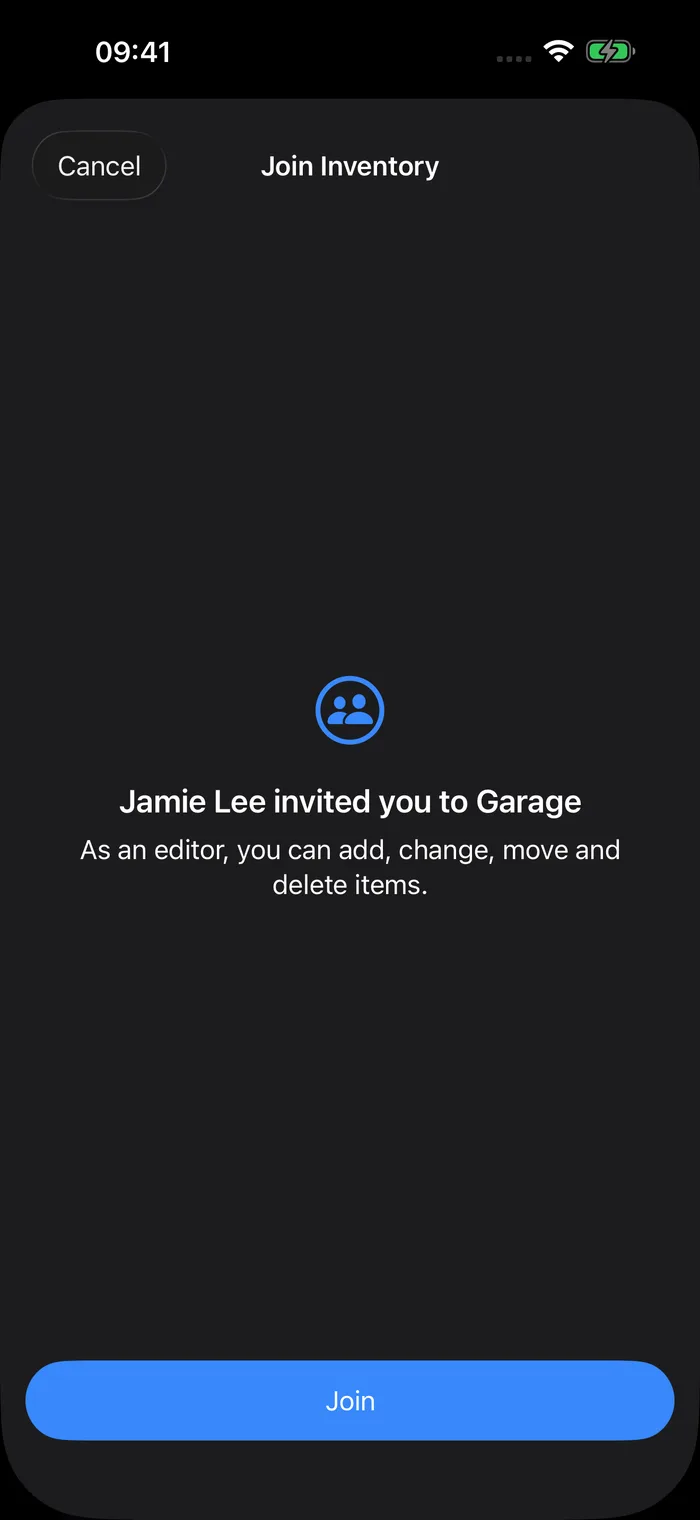
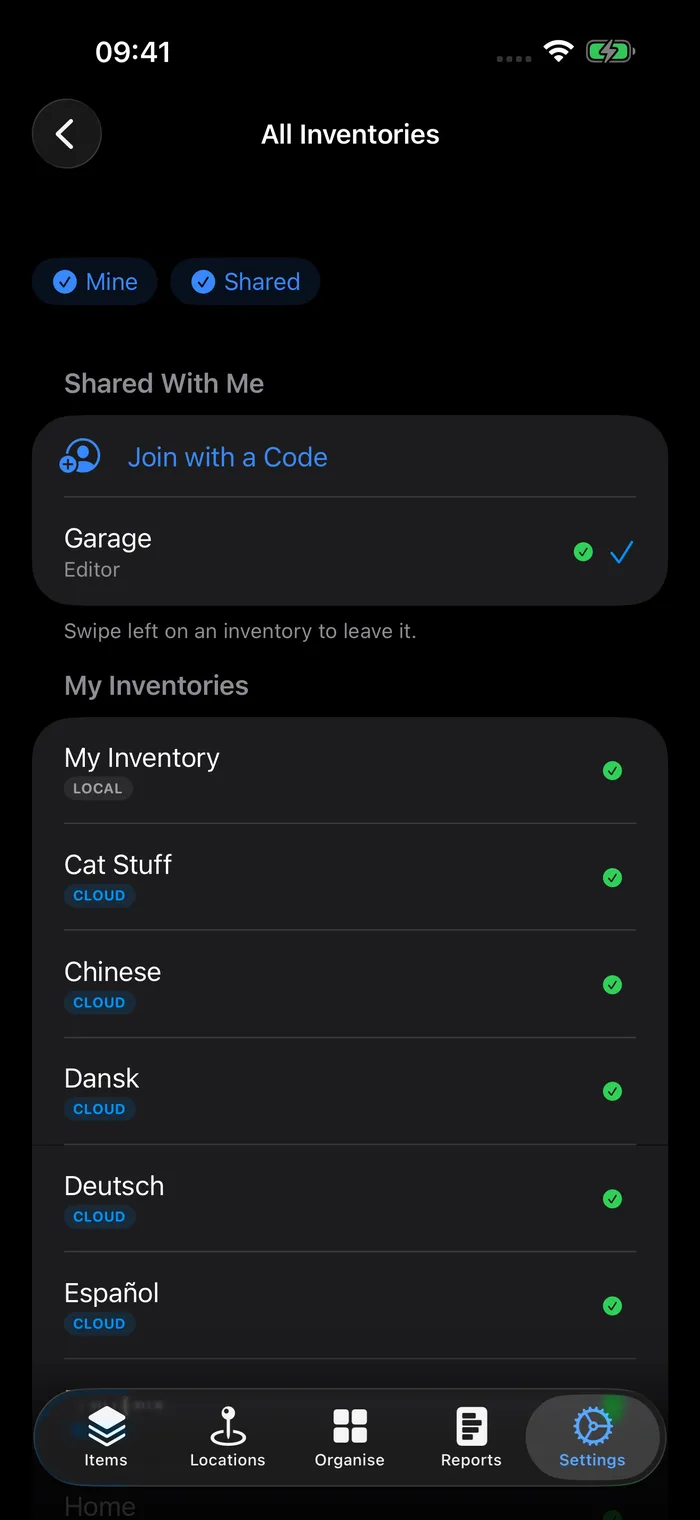
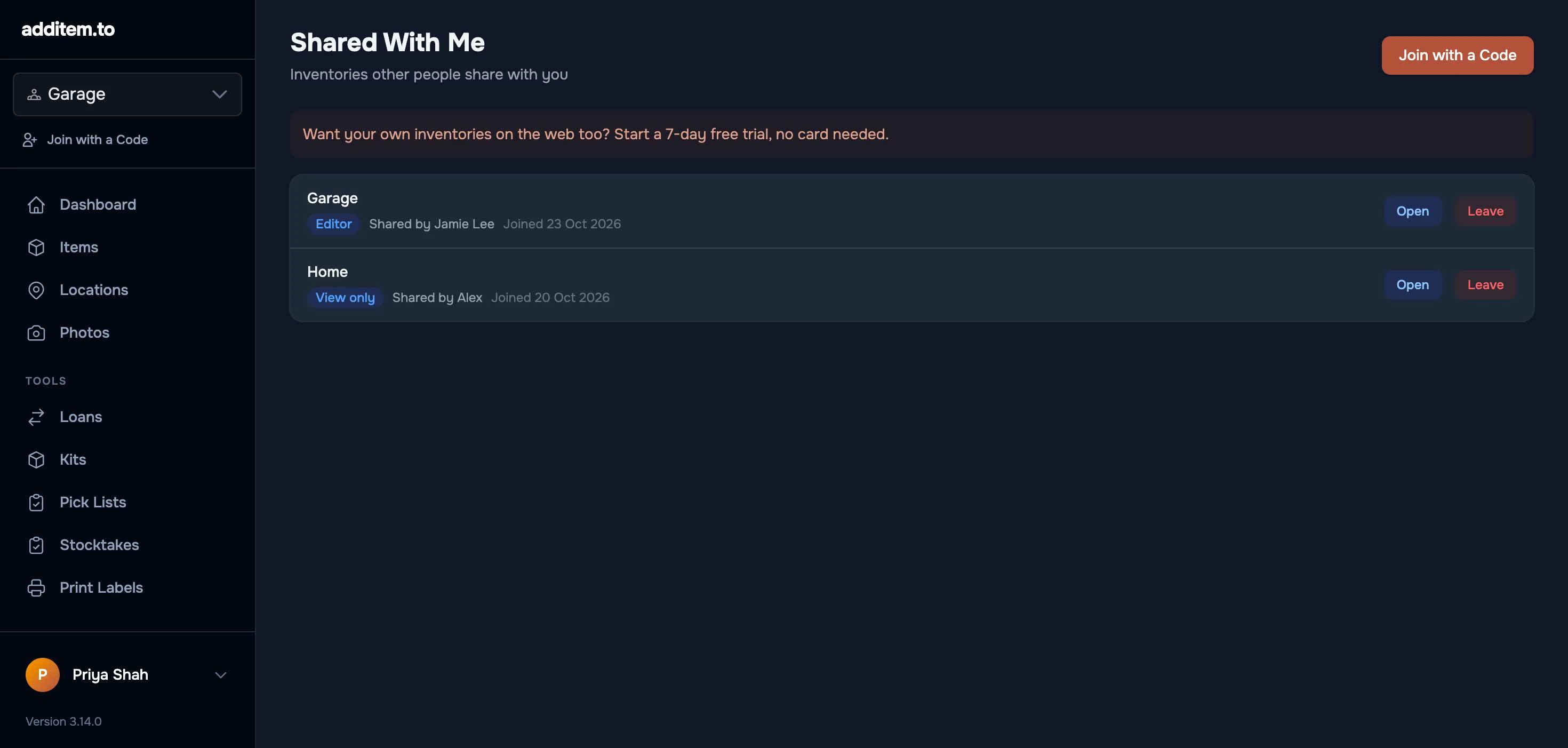
The shared inventory then sits under Shared With Me in All Inventories and in the inventory switcher, with their role beside it.
Sharing and the web app
The people you share with can also open the shared inventory at app.additem.to, without Pro Cloud of their own. They sign in with the same account they use on their phone. Their own inventories, if they have any, stay in the app on their phone unless they have Pro Cloud too.
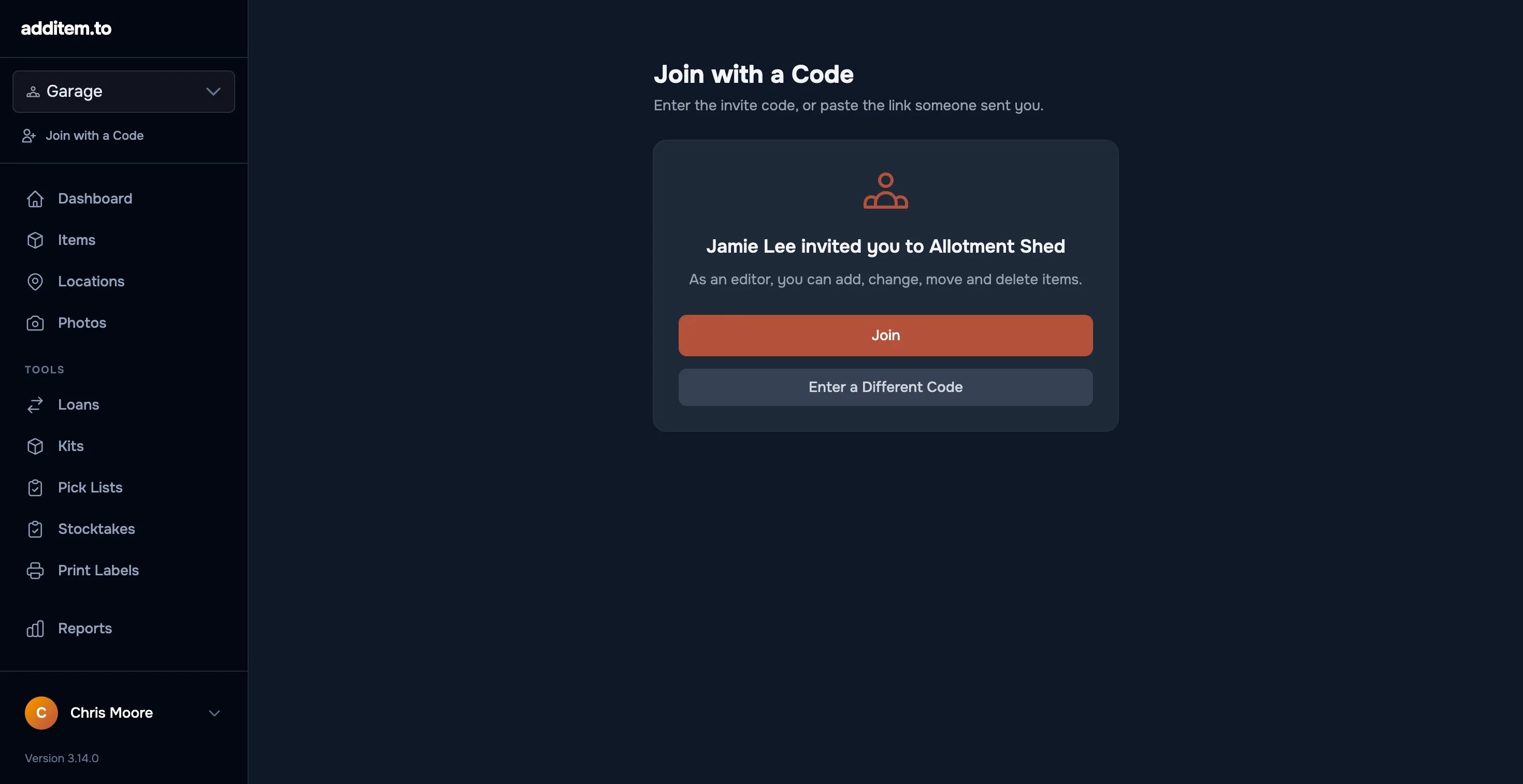
Someone who signs up on the web to join an invite doesn't start a Pro Cloud trial. They can start the 7-day free trial later if they want their own inventories on the web as well.
See who has access
In Settings > Share, the People section lists everyone with access to that inventory and their role. Tap a person to change what they can do or to remove them.
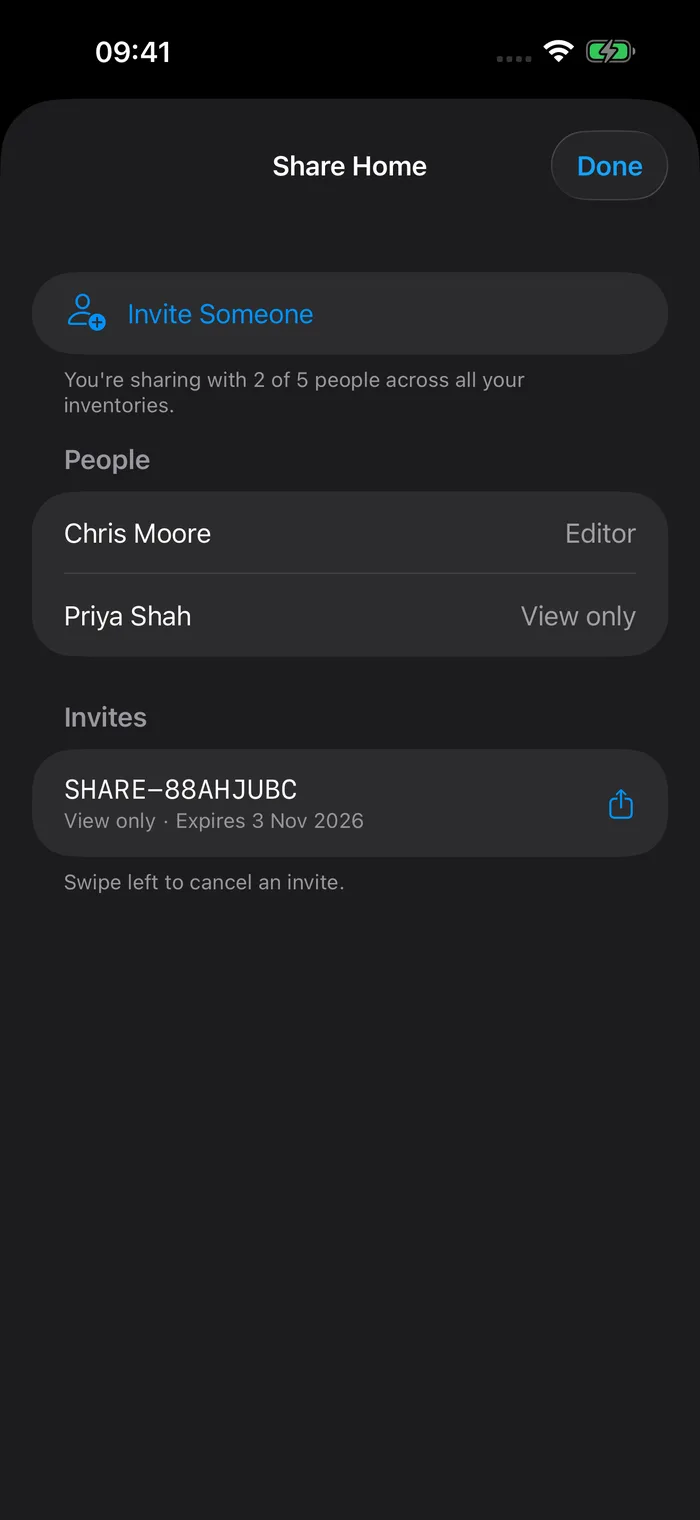
Settings > People shows everyone you share with across all your inventories, which is the quickest way to see how many of your five places are used.
Leaving, and when sharing stops
The person you invited can leave whenever they like. In All Inventories, they swipe left on the shared inventory and tap Leave. Anything they changed that hasn't synced yet is uploaded first, then the inventory is removed from their device.
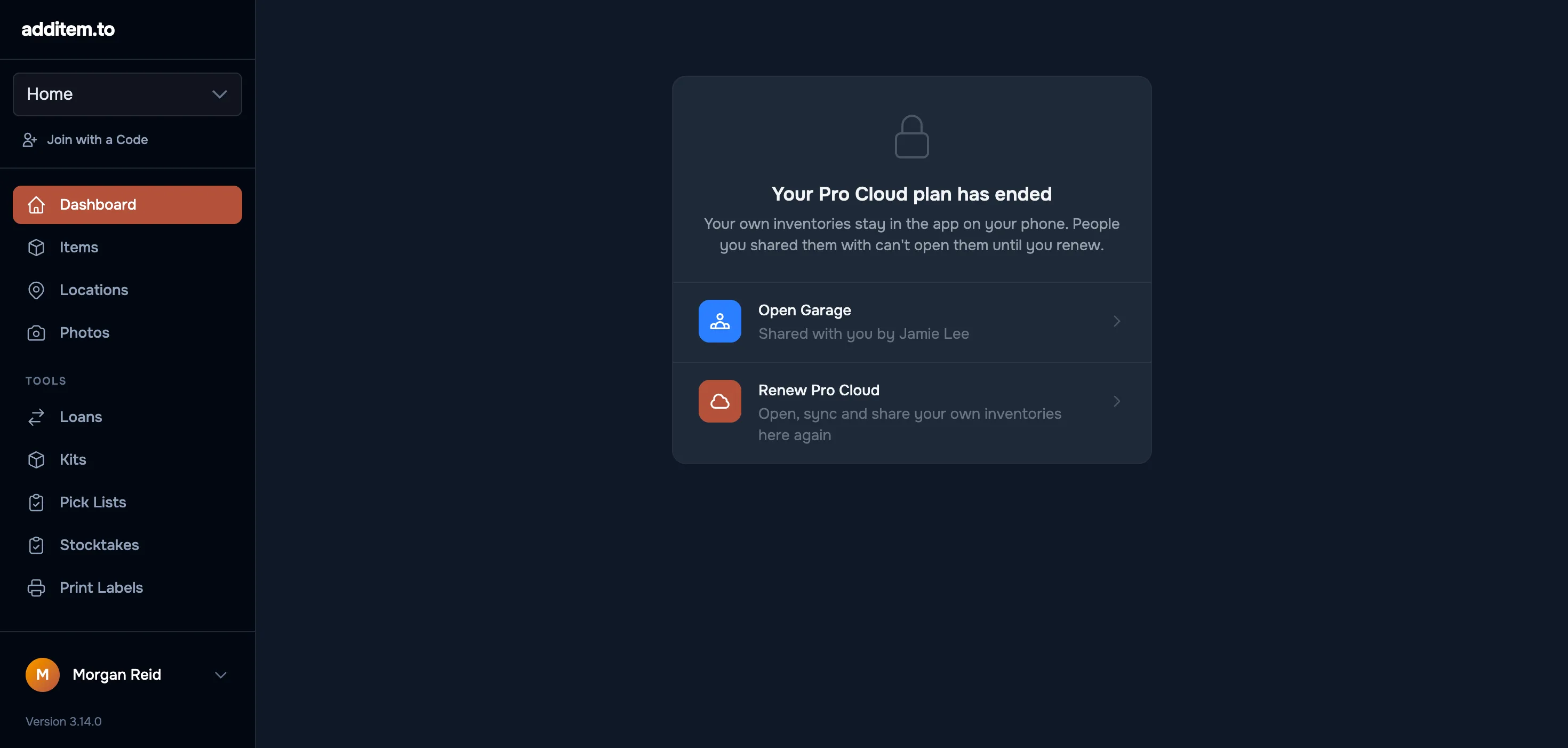
If you remove someone, or your Pro Cloud ends, they lose access. The next time their app syncs, the inventory is removed from their device and the app tells them. Your own copy is not affected. If your Pro Cloud ends and you renew, the people you shared with can open it again.
additem.to is free on iPhone and Android, and you don't need an account. Sharing an inventory is part of Pro Cloud, and the people you invite don't need it.
Download on the App Store Get it on Google Play