The additem.to web app
With Pro Cloud, your inventory is in your web browser at app.additem.to as well as on your iPhone. This guide covers signing in, what each part of the web app does, and the few things that still need your phone.
The web app is the same inventory as your iPhone, on a bigger screen. Add an item on your computer and it's on your phone after the next sync. Edit it on your phone and the web app has the change.
It's useful when there's a lot to type, like a batch of new items, a CSV import or a report for your insurer. It also works on a Windows PC, a Chromebook or an Android phone, since all it needs is a browser.
What you need
- Pro Cloud on your account. The web app is part of Pro Cloud. If you're new, signing in at app.additem.to for the first time creates your account and starts a 7-day free trial. We don't ask for a card, so nothing is charged.
- The same account as your phone. The next section shows how to make sure of that.
- An internet connection. The web app works with the copy of your inventory on our servers, so it needs to be online. Your iPhone app keeps working offline either way.
Signing in
The easiest way is to link the browser from your phone.
- On your computer, open app.additem.to. It shows a QR code.
- On your iPhone, open Settings and tap Link Web App.
- Scan the QR code on your computer. The browser is now signed in to the same account as your phone.
You can also use Continue with Apple on the web, with the same Apple Account as your phone. There's a Continue with Google button too, but if your phone signs in with Apple, Google gives you a second account, and it's empty. If the web app is empty while your phone is full, that's almost always why. The sync guide explains it in more detail.
Finding your way around
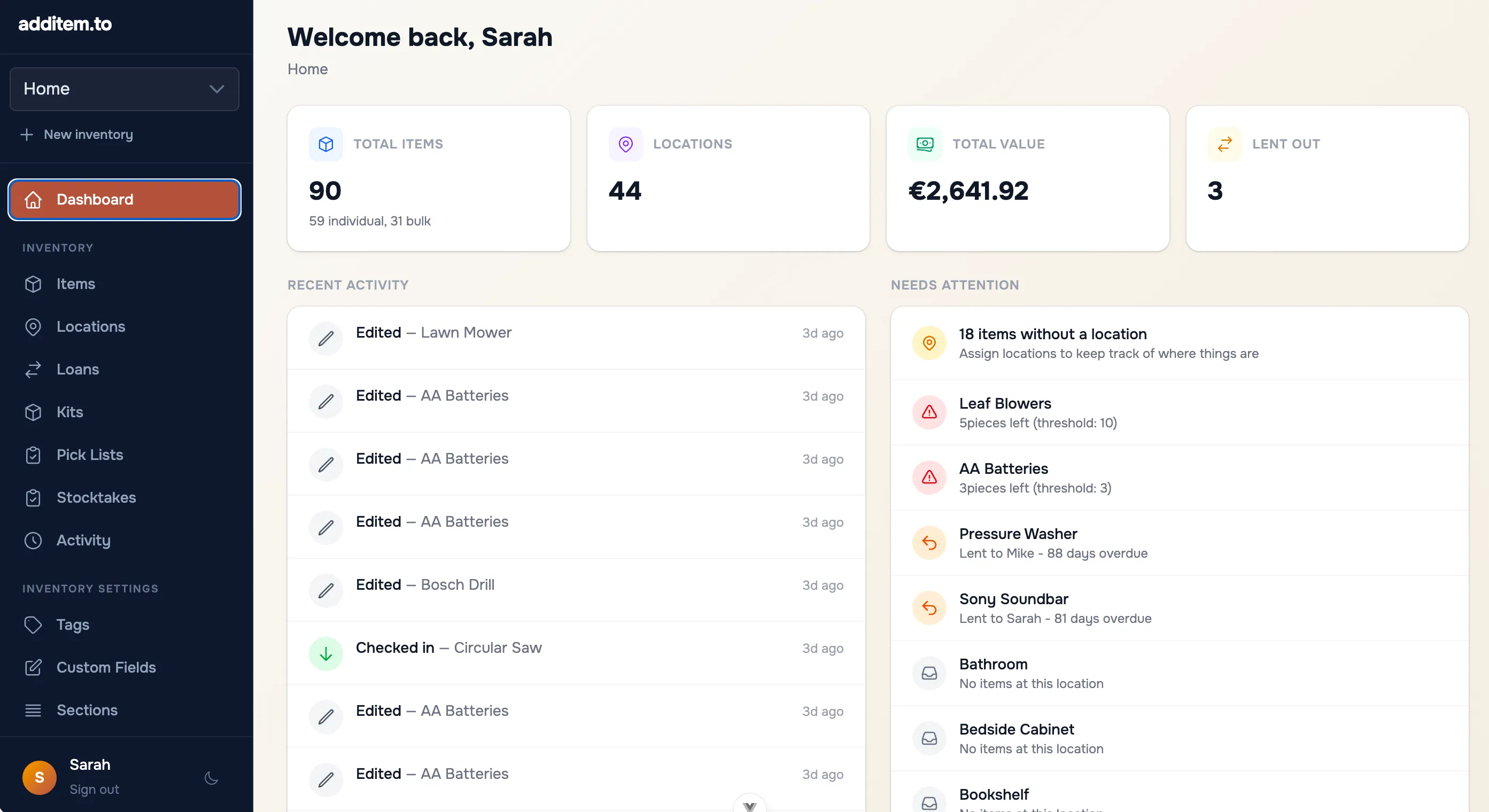
The menu down the left side has everything. At the top is the inventory you're looking at. Click it to switch to another inventory, or use New inventory to start one. Below that are Dashboard, Items, Locations and Photos, then the tools: Loans, Kits, Pick Lists, Stocktakes, Print Labels, Reports and Organise.
Your name at the bottom opens a menu with your account, the people you share with, your signed-in sessions, dark mode, these guides and Contact Support.
The Dashboard is the overview. It shows how many items you have, how many locations, their total value and what's lent out, with your recent activity next to a list of things that need attention. Those are items without a location, items running low on stock, overdue loans and empty locations.
Items
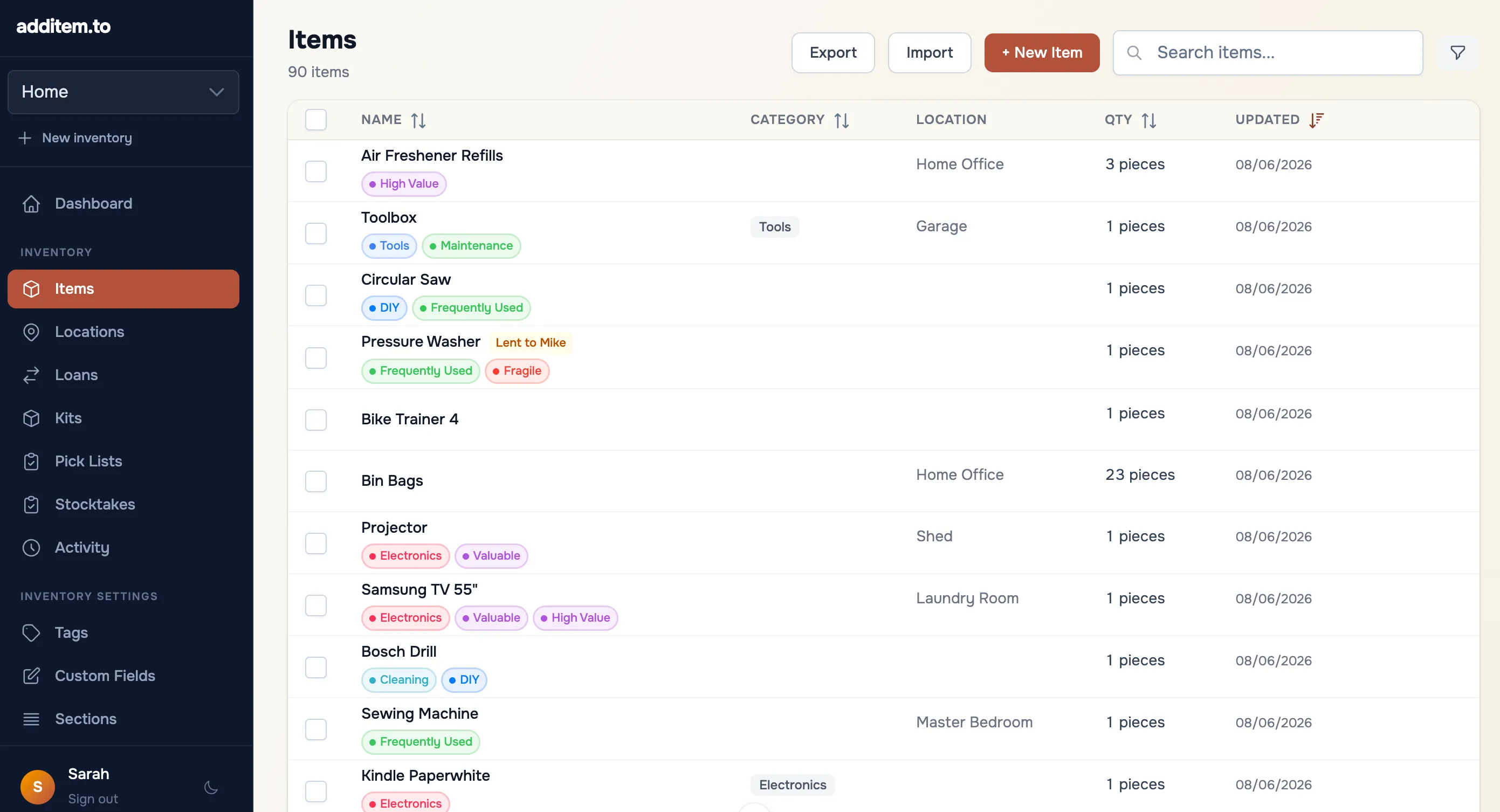
The Items list has search, sorting and filters, the same as on your phone. From here you can add items in three ways.
- New Item opens the item form. Pick one of your templates first and its fields are filled in for you. Save and add another keeps the form open for the next one.
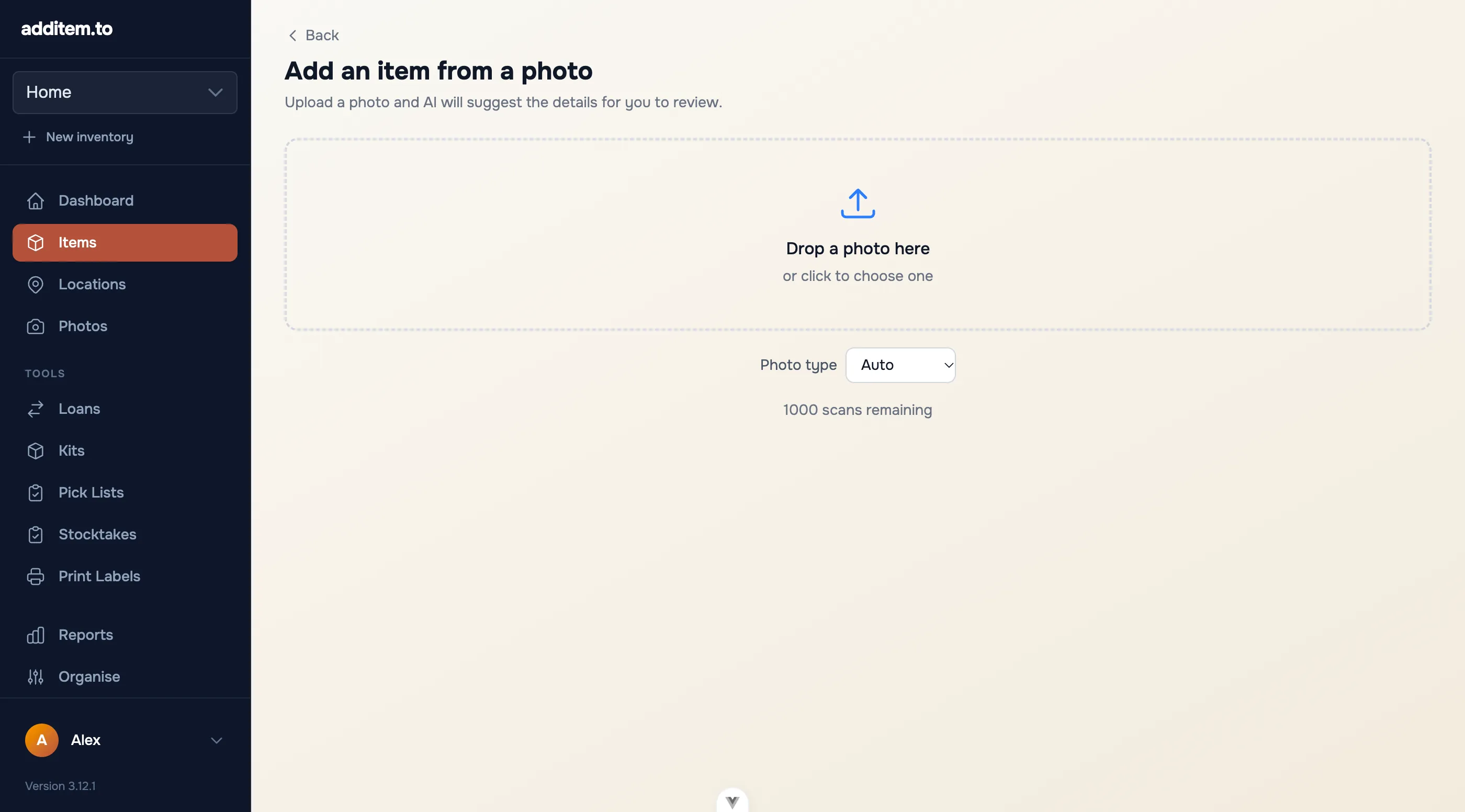
- Add from photo uses AI scanning. Drop in a photo of an item, a label or a receipt and the details are suggested for you to check before anything is saved. It uses the same monthly AI scans as your phone.
- Import, under More actions, brings in a spreadsheet. The CSV import guide explains the format. Export next to it gives you a CSV of your items.
Find by Code opens an item from its QR code or barcode. Type or paste the code, scan it with a USB barcode scanner, or use your computer's camera.
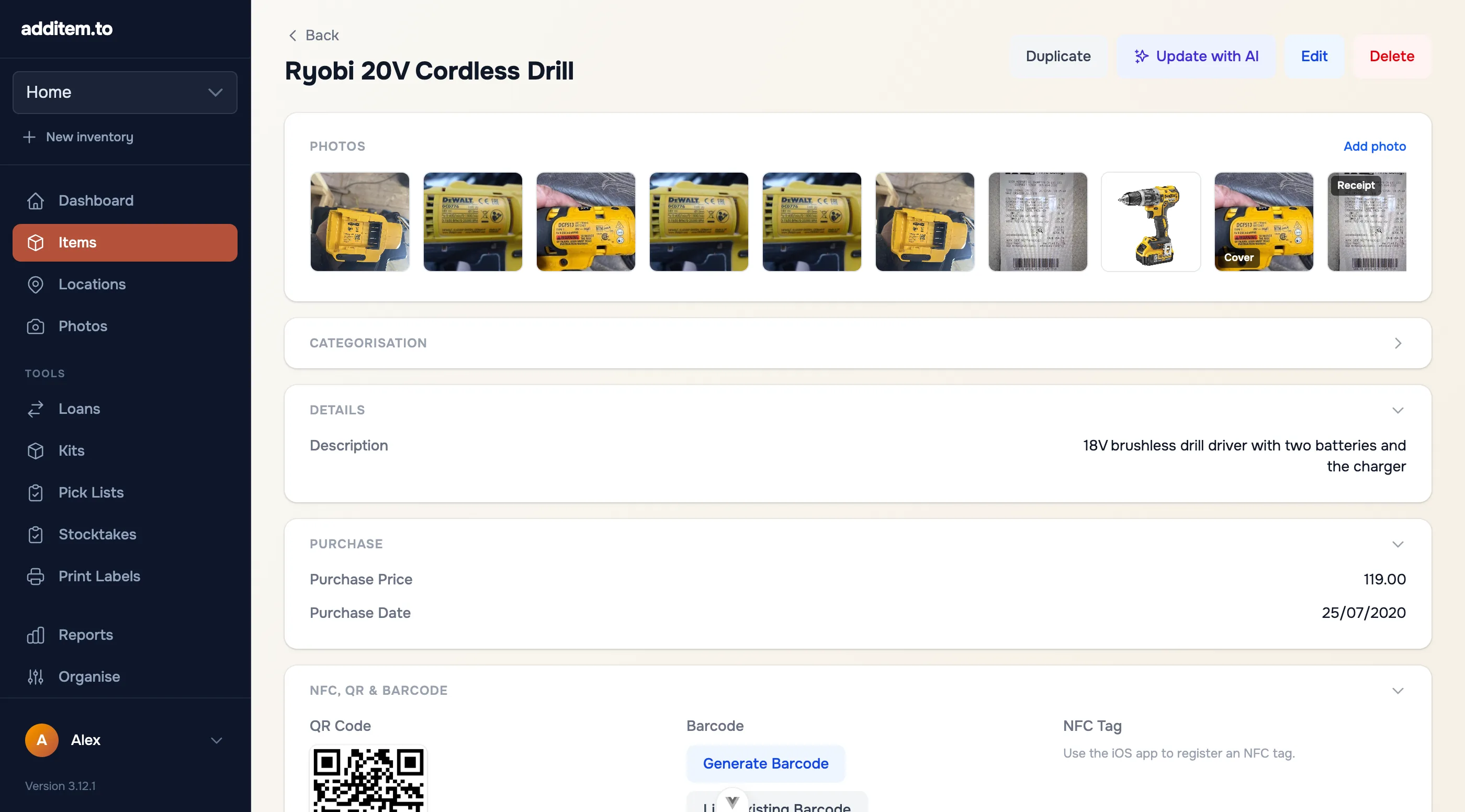
An item's page has its photos, details, purchase information, codes, loans and activity. From there you can edit or duplicate the item, run Update with AI to fill in missing details from a photo, record a sale or a restock with Adjust Stock on a quantity item, and lend an item or mark it returned. You can generate or link a QR code or a barcode and add the item to your label sheet with Print label.
Locations, photos and activity
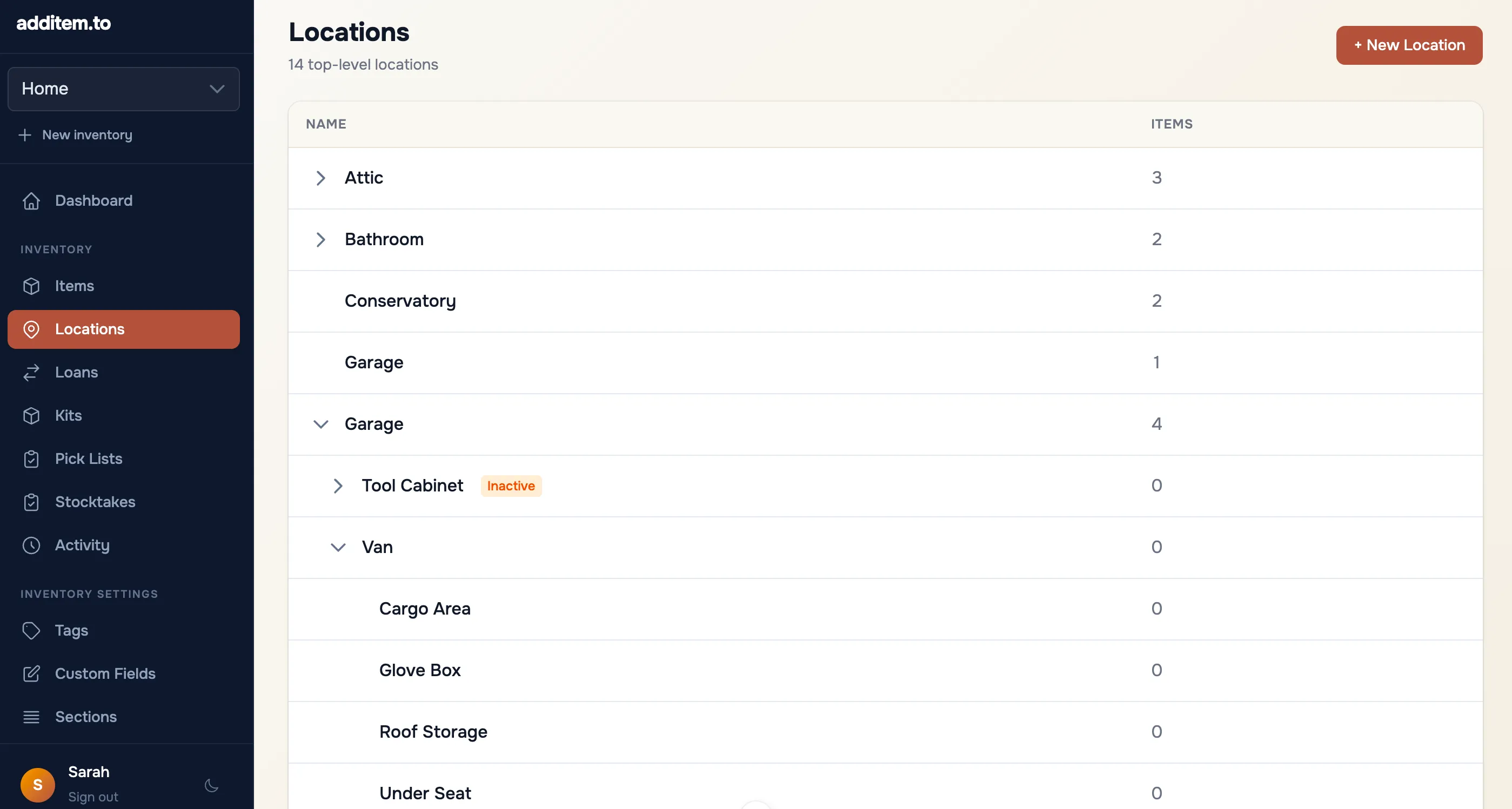
Locations shows your rooms, shelves and boxes with the number of items in each. Open one to see what's in it, or add a new location. Locations can have QR codes too, so Find by Code works here as well.
Photos shows every photo in the inventory in one grid. Activity is the full history of changes, check-ins and stock movements, with a filter by type.
Tools
- Loans lists everything that's lent out, who has it and since when. Overdue loans are marked, and Return Item closes a loan. See tracking loans.
- Kits are groups of items that go out together, like a camping kit. You can lend a whole kit at once.
- Pick Lists are lists of items to collect, with active and completed lists kept apart.
- Stocktakes lists past stocktakes with what was found, missing or unexpected, and starts a new one.
- Print Labels collects the QR and barcode labels you've added from items and locations and prints them as a sheet. See printing labels.
Reports
Seven reports are here. They are Full Inventory, Location Summary, Category Summary, Tag Summary, Low Stock, Stock History and Lent Items. The iPhone app's Activity Log report is the Activity page in the web app. Reports are easier to read on a big screen, and they're where you'd go for an insurance list.
Organise and settings
Organise is where you set up how the inventory works. It has categories, tags with their colours, custom fields, which sections appear on item pages, what the items list shows for each item, and templates. It also has Shared With, for inviting people to the inventory, and Inventory settings for its name, description and currency.
Your Account page shows your display name, the Apple or Google account you sign in with, your subscription, and Download my data, a copy of everything in your inventories as a file. Sessions lists every device signed in to your account, so you can sign one out.
What still needs your iPhone
- NFC tags. A browser can't read NFC, so registering a tag and tapping one to open an item stay on the iPhone app. See using NFC tags.
- Working offline. The web app needs a connection. The iPhone app doesn't, and catches up when it's back online.
Everything you do in the web app syncs back to your phone. Your phone keeps the full inventory, so the web app is an extra window onto it, not a replacement.
additem.to is free on iPhone, and you don't need an account. The web app is part of Pro Cloud, with a 7-day free trial.
Open the web app